ScorbitVision Dashboard
ScorbitVision lets you display live scores, leaderboards, and other pinball content on any TV or browser. The ScorbitVision Dashboard is where you build and manage those displays.
ScorbitVision is accessed through Scorbit Console. Select a venue, then choose the ScorbitVision tab to open the dashboard for that venue.
In ScorbitVision, everything centers on two ideas:
- A Screen is a single display — a TV in your game room, a browser tab on a monitor, or a window in your streaming software. Each screen has its own shareable URL.
- A Playlist is the ordered list of content that a screen rotates through. Each item in the playlist is one view — a leaderboard, a scoreboard, an image, and so on — shown for a set number of seconds before advancing to the next.
This replaces the older approach of building separate Scoreboards, Leaderboards, Comboboards, and Slideshows as standalone objects. Now you create a screen, add items to its playlist, and the screen plays them in sequence.
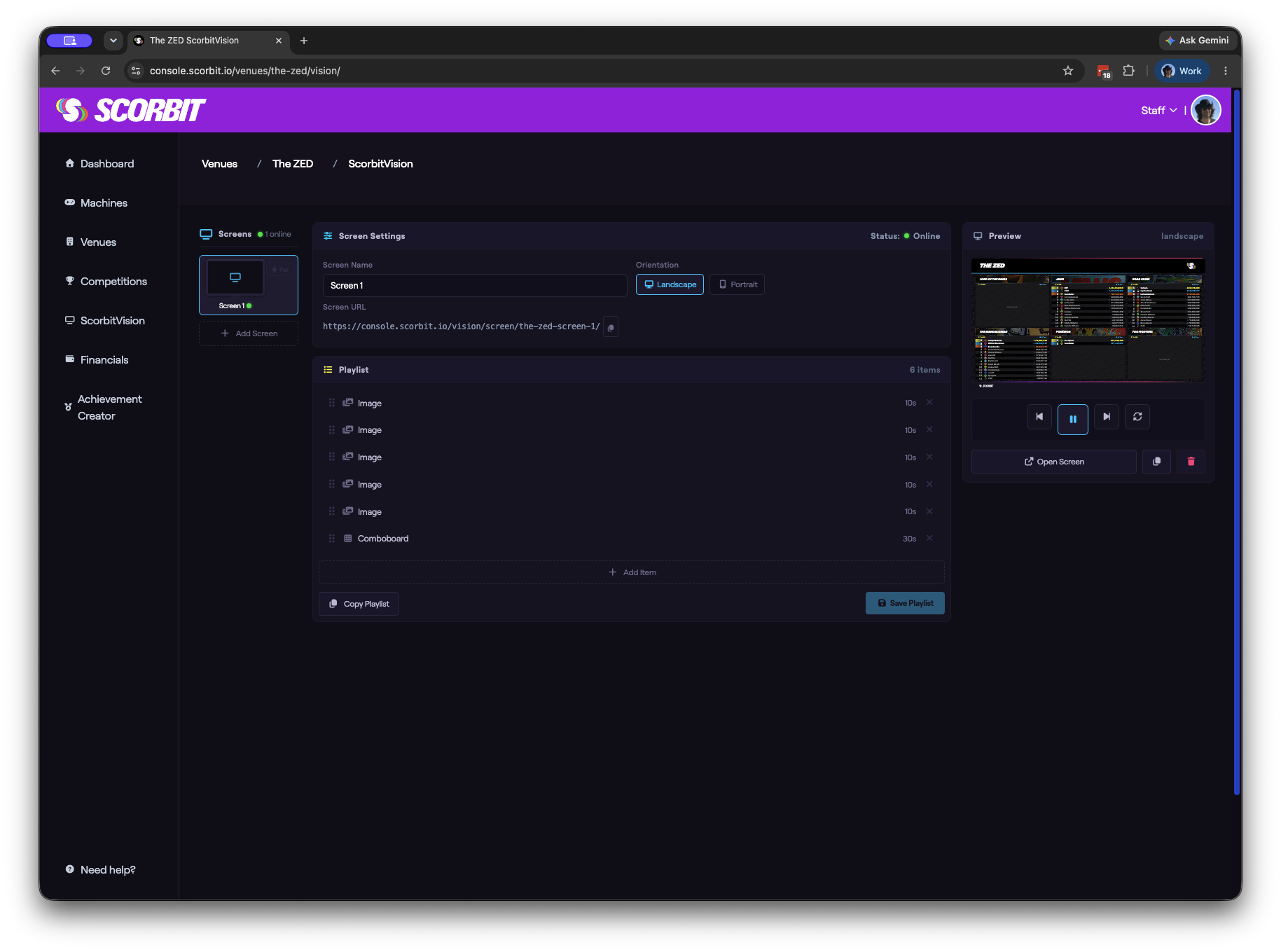
The dashboard is organized into three columns:
- Screens — the list of displays for this venue.
- Screen Settings & Playlist — where you configure the selected screen and build its playlist.
- Preview — a live view of what the selected screen is showing, plus playback controls.
The Screens Column
The left column lists every screen you have created for the current venue. At the top, an indicator shows how many screens are currently online (actively connected and displaying).
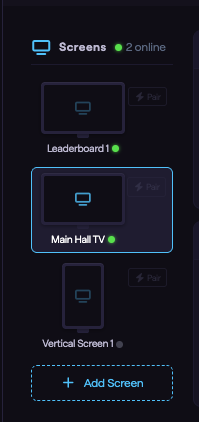
Each screen appears as a card showing its name and a status dot:
- Green — the screen is online and displaying.
- Gray — the screen is offline or has not been seen recently.
Click any card to select that screen and load its settings and playlist into the middle column.
Adding a Screen
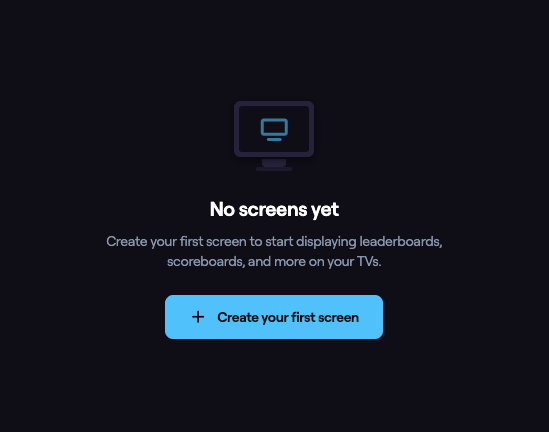
If you have no screens yet, the dashboard shows a Create your first screen prompt. Otherwise, click the Add Screen button at the bottom of the Screens column. Once created, the screen appears in the list and is ready to configure.
Pairing a Device
Each screen card includes a Pair button for linking a dedicated ScorbitVision display device to that screen. This feature is coming soon. In the meantime, you can drive any screen by opening its Screen URL (described below) in a browser.
Screen Settings
When you select a screen, the middle column opens with the Screen Settings panel. A status indicator at the top of the panel shows whether the screen is currently online.
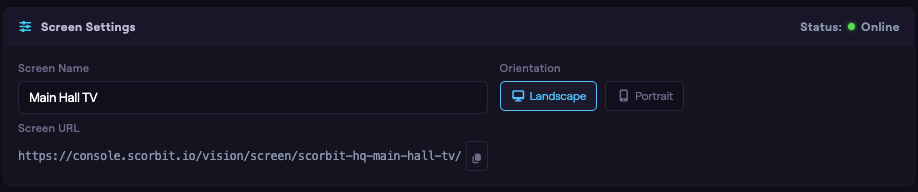
- Screen Name — a friendly name for the screen (for example, "Game Room TV" or "Bar Front Window"). Edits save automatically when you click away from the field.
- Screen URL — the unique web address for this screen. Open it on any device with a browser to display the screen, or use the copy button to share it. This is the URL you load on the TV, monitor, or streaming-software browser source that will show the content.
- Orientation — choose Landscape for a standard horizontal TV or monitor, or Portrait for a vertically mounted display. The preview and the live screen both follow this setting.
The Playlist Generator
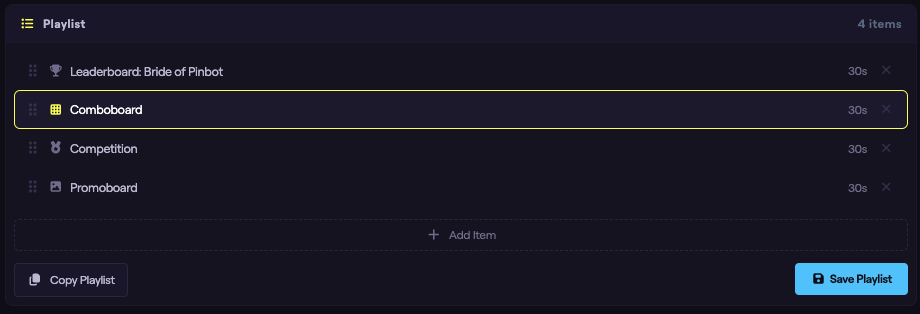
The Playlist panel is where you build the sequence of content the screen will display. The item count is shown in the panel header.
Adding an Item
Click Add Item to open the type picker, then choose the kind of content to add:
- Leaderboard — top scores for a machine, game, or variant. See ScorbitVision Leaderboards.
- Scoreboard — live, in-progress scores for a single machine.
- Comboboard — multiple boards arranged together on one screen.
- Competition — standings for one or more tournaments at the venue.
- Streamboard — a lower-third or scores-only overlay designed for live streaming.
- Image — a static image, such as a poster or promotion.
- Webview — an embedded web page.
- Promoboard — a promotional display that pairs an image with a competition.
Some item types may appear dimmed if they are not enabled for your venue. Hover over a dimmed type to see why it is unavailable.
Each item type has its own configuration, covered in its own guide. This series begins with ScorbitVision Leaderboards.
Setting Each Item's Duration
Every item displays for a set number of seconds before the playlist advances. Click the duration shown on an item to choose a preset (5, 10, 20, 30, 60, or 120 seconds), or set a precise value in the item's configuration panel.
Reordering and Removing Items
Drag an item by its handle to change its position in the playlist. To remove an item, click the ✕ on the item.
Copying a Playlist
If you have more than one screen, the Copy Playlist button lets you reuse a playlist from another screen. You can Append its items to the current playlist, or Replace the current playlist entirely. This is handy when you want several screens to show the same content, or to use one screen as a starting template for another.
Saving
Changes to the playlist are not live until you save. When you have unsaved changes, the Save Playlist button becomes active. Click it to push your changes to the screen.
Item Configuration
When you select an item in the playlist, its configuration panel opens below the playlist. The available options depend on the item type — a leaderboard offers scope and time filters, an image offers an upload field and fit options, and so on. Every item also has a Playlist Duration field controlling how long it stays on screen.
Each item type's options are documented in that type's guide.
The Preview Column
The right column shows a live Preview of the selected screen in the chosen orientation, so you can see exactly how your content will look before it goes out to the TV.
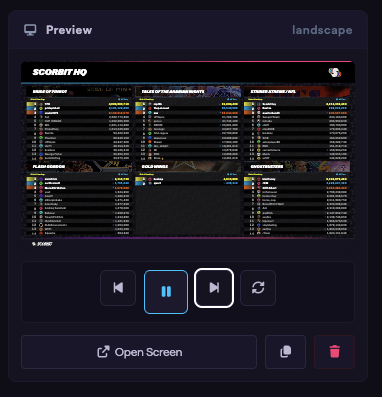
Beneath the preview are transport controls that let you control the live screen remotely:
- Previous — jump to the previous item in the playlist.
- Play / Pause — start or stop the playlist from advancing.
- Next — jump to the next item.
- Reload — refresh the screen.
Next Steps
Now that you understand the dashboard, you are ready to build your first playlist item. Continue with ScorbitVision Leaderboards.