ScorbitVision Scoreboards
A ScorbitVision Scoreboard displays the live, in-progress scores for a single machine. Where a leaderboard shows all-time top scores, a scoreboard follows the game that is happening right now — the current ball, each player's running score, and the final results when the game ends.
Scoreboards are one of the item types you can add to a screen's playlist, so before continuing, make sure you are familiar with the ScorbitVision Dashboard and how playlists work.
To show live scores, the machine must be connected to Scorbit (typically with a Scorbitron, or through the SDK for integrated games). A scoreboard for a machine that is not actively being played will show its idle state until a game begins.
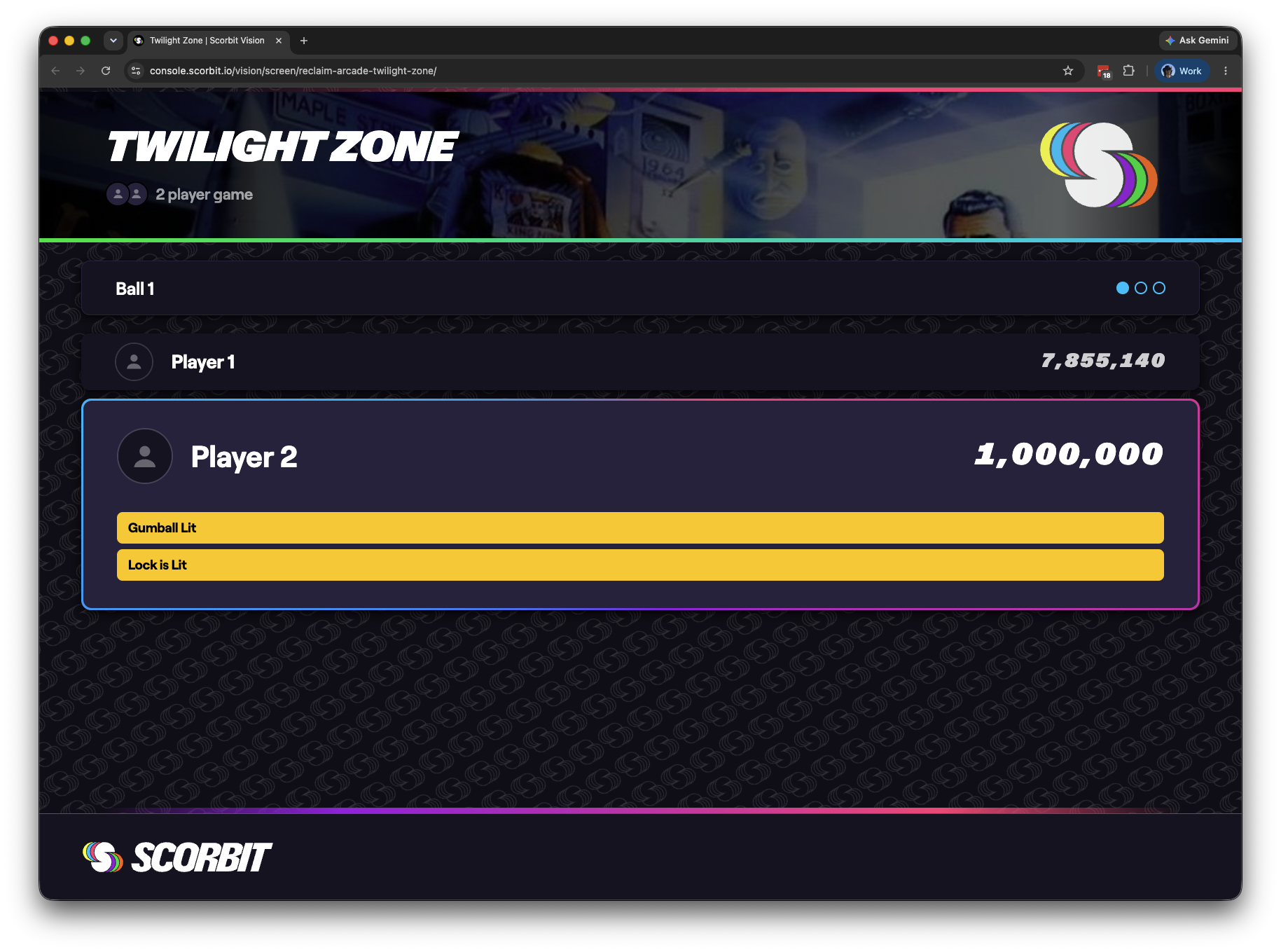
What a Scoreboard Shows
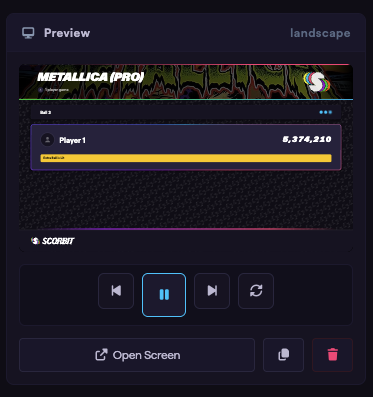
A scoreboard updates in real time as a game is played:
- Machine title and backglass art across the header.
- Players in the game — player avatars and a count (for example, "4 player game").
- Ball status — the current ball number while a game is in progress, or Game Over when it ends.
- Live scores — each player's score, updating as they play.
- Final Scores — once the game ends, the final results are shown.
Between games, the scoreboard can optionally rotate through a leaderboard so the screen always has something to show (see Leaderboard when Idle below).
Adding a Scoreboard
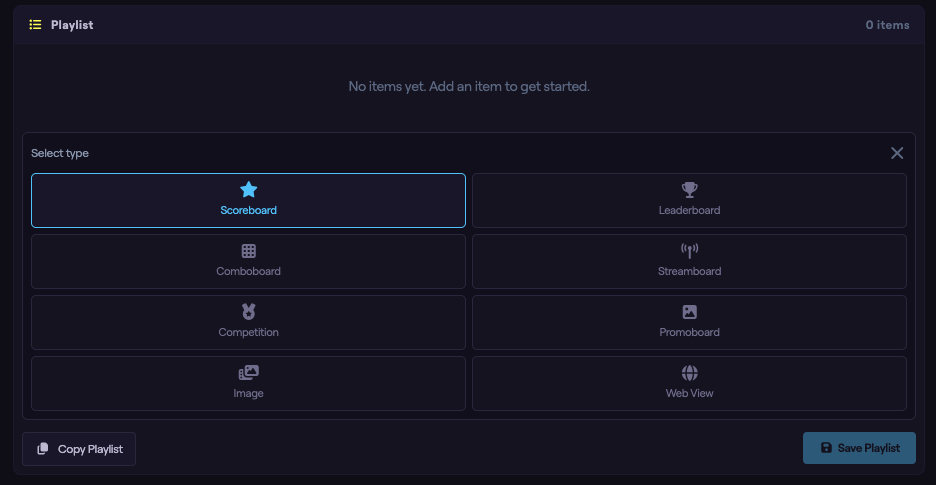
From the dashboard, select the screen you want to edit, then in the Playlist panel click Add Item and choose Scoreboard. The new item is added to the playlist and its configuration panel opens below.
Choosing the Machine
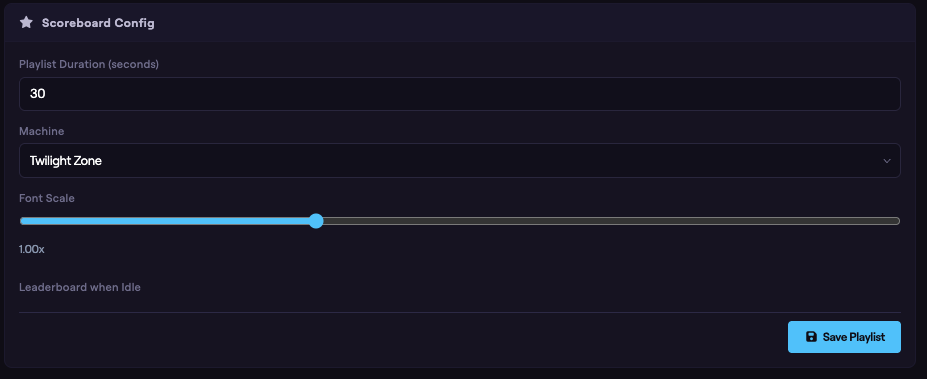
In the configuration panel, use the Machine picker to search for and select the machine whose live scores you want to display. Only one machine appears per scoreboard. To show several machines at once, use a Comboboard instead.
Font Scale
The Font Scale slider adjusts the size of the on-screen text, from 0.5× to 2×. Use a larger scale for displays viewed from a distance, or a smaller scale to fit more detail. The default is 1×.
Leaderboard when Idle
A machine isn't always being played, so a scoreboard can fill the gaps by showing a leaderboard between games. Expand the Leaderboard when Idle section to configure this.
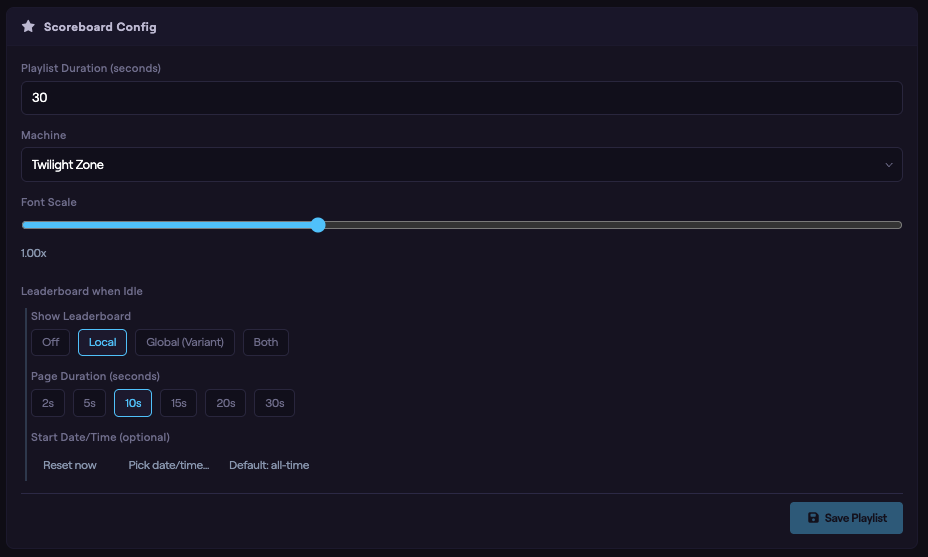
Show Leaderboard controls what appears while the machine is idle:
- Off — show only the scoreboard's idle state, with no leaderboard.
- Local — show the all-time leaderboard for this specific machine.
- Global (Variant) — show the leaderboard for this machine's edition or variant across the platform.
- Both — alternate between the local and global (variant) leaderboards.
When a leaderboard is enabled, two more options appear:
- Page Duration — how long each leaderboard page stays on screen before advancing (2, 5, 10, 15, 20, or 30 seconds).
- Start Date/Time (optional) — limit the idle leaderboard to scores recorded from a specific date and time forward. Leave it empty for an all-time leaderboard.
As soon as a game starts on the machine, the scoreboard automatically switches from the idle leaderboard to live play.
Setting Duration and Saving
Set how long the scoreboard stays on screen using the Playlist Duration field (in seconds) at the top of the configuration panel, or by clicking the duration on the playlist item.
As you make changes, watch the Preview column on the right to see how the scoreboard will look. When you are satisfied, click Save Playlist to push your changes to the screen.
Next Steps
To show all-time top scores rather than live play, use a ScorbitVision Leaderboard. To display several scoreboards or leaderboards together on a single screen, use a Comboboard, covered in the next guide in this series.