ScorbitVision Web View
A ScorbitVision Web View embeds a live web page on a screen. Use it to display anything that lives on the web — a venue website, an event schedule, a social feed, a dashboard, or a digital menu — as one item in your playlist.
Web View items are one of the item types you can add to a screen's playlist, so before continuing, make sure you are familiar with the ScorbitVision Dashboard and how playlists work.
Adding a Web View
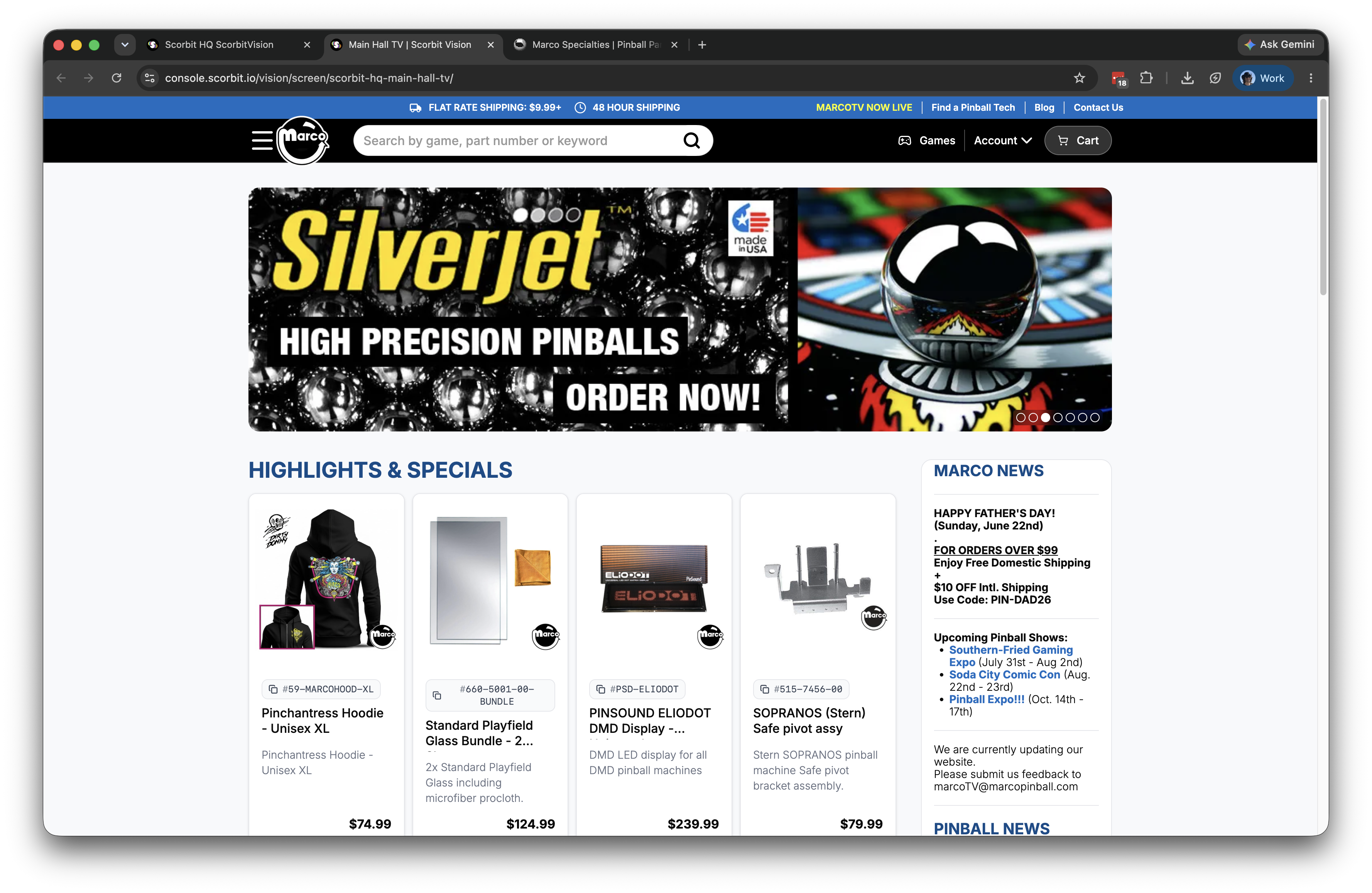
From the dashboard, select the screen you want to edit, then in the Playlist panel click Add Item and choose Webview. The new item is added to the playlist and its configuration panel opens below.
Settings
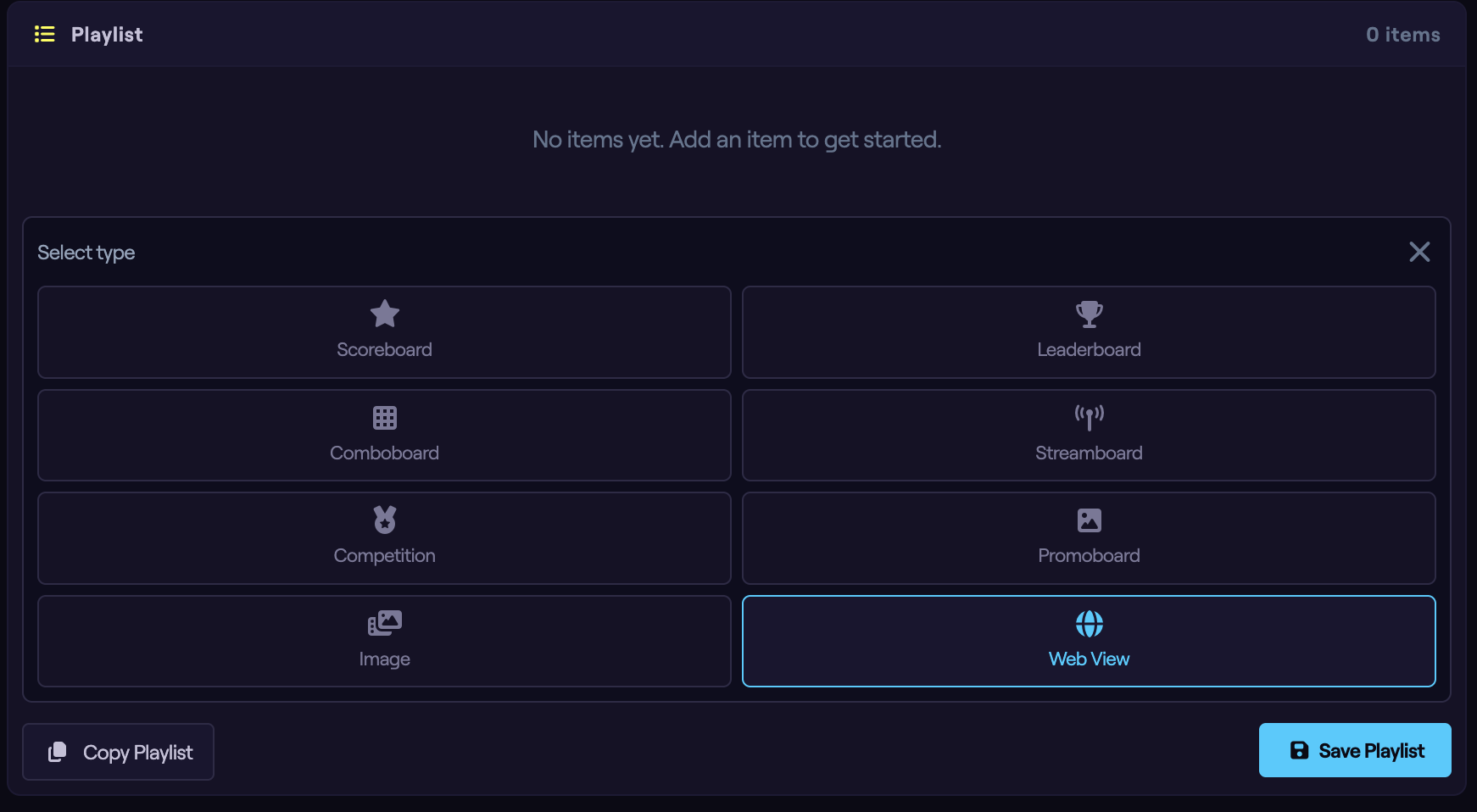
- URL — the web address of the page to display. Use a full
https://address (see Limitations below). - Reload Interval — how often, in seconds, the page automatically refreshes. Enter
0to never reload. A reload interval is useful for pages whose content changes over time, such as a live dashboard or schedule, so the screen always shows the latest version.
Limitations: Why a Page Might Not Load
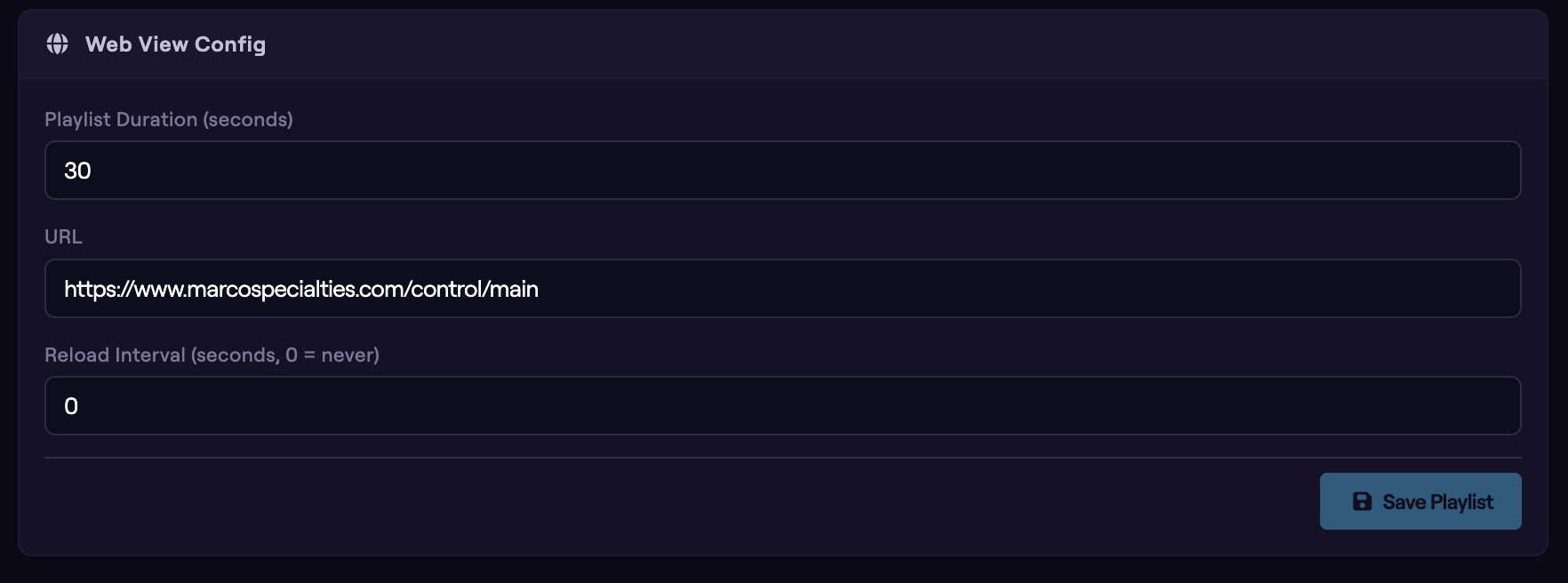
A Web View displays the page inside an iframe — a web page embedded within another. For security reasons, browsers and websites place restrictions on what can be embedded this way. If your screen shows a blank area, an error, or "refused to connect" where the page should be, one of the following is almost always the cause.
The site blocks embedding
This is by far the most common reason. Many websites explicitly forbid being embedded in an iframe, using security headers (X-Frame-Options or a Content Security Policy frame-ancestors rule). Large sites such as Google, YouTube's main site, Facebook, Instagram, X (Twitter), and most banking or login pages block embedding entirely. When a site blocks embedding, there is no setting in ScorbitVision that can override it — the restriction comes from the site itself.
How to fix it:
- Use a page that allows embedding. Many services publish a dedicated embed URL for exactly this purpose — for example, YouTube's
youtube.com/embed/<video-id>, a Google Maps "Embed a map" link, or the "embed" share option many calendars, dashboards, and social tools provide. Look for an Embed or Share → Embed option on the source site and use the URL it gives you. - Host the content on a page you control that permits embedding.
- If neither is possible, display the content another way — for instance, capture it as an Image instead.
The address is not secure (HTTP)
ScorbitVision screens are served over a secure (https://) connection, and browsers will not load an insecure (http://) page inside a secure one. An http:// URL will appear blank.
How to fix it: use the https:// version of the address. If the site has no https:// version, it cannot be embedded.
The page requires a login
The embedded page loads as if a brand-new, signed-out visitor opened it — it does not share your console login, and many sites block the third-party cookies that sessions rely on. Pages behind a login will typically show a sign-in screen or nothing at all.
How to fix it: point the Web View at a publicly accessible page, or use a sharing link that carries its own access token in the URL (many dashboard tools offer a "public" or "share" link for this).
Test before you rely on it
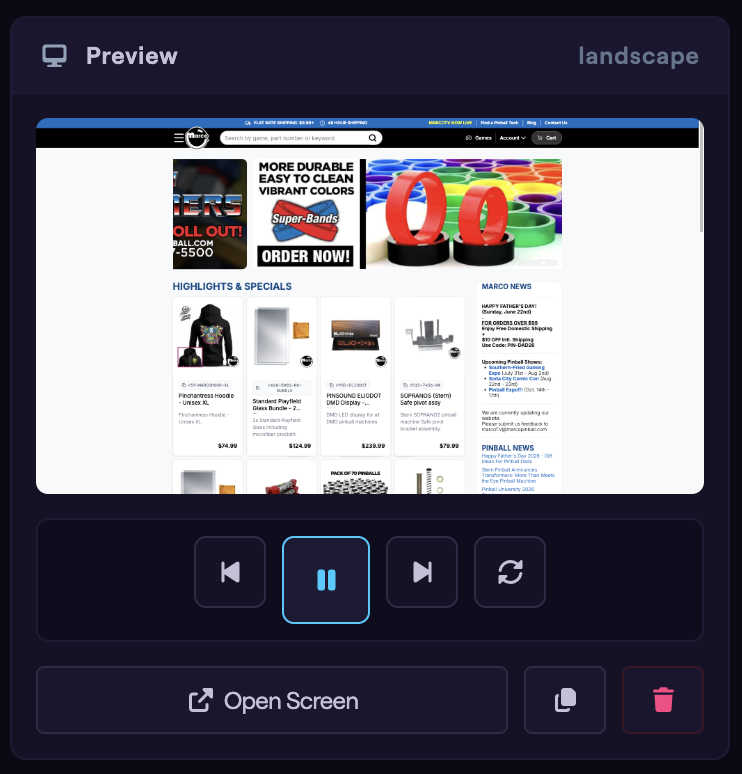
After saving, check the Preview column to confirm the page loads. Note that the preview runs in a slightly more restricted mode than the live screen, so if a page looks right in the preview it will work on the screen. If it is blank in the preview, work through the causes above. When in doubt, open the URL in a normal browser tab first — if it only works there but not when embedded, the site is blocking embedding.
Setting Duration and Saving
Set how long the web page stays on screen using the Playlist Duration field at the top of the configuration panel, or by clicking the duration on the playlist item.
Watch the Preview column as you adjust the settings, then click Save Playlist to push your changes to the screen.