ScorbitVision Promoboards
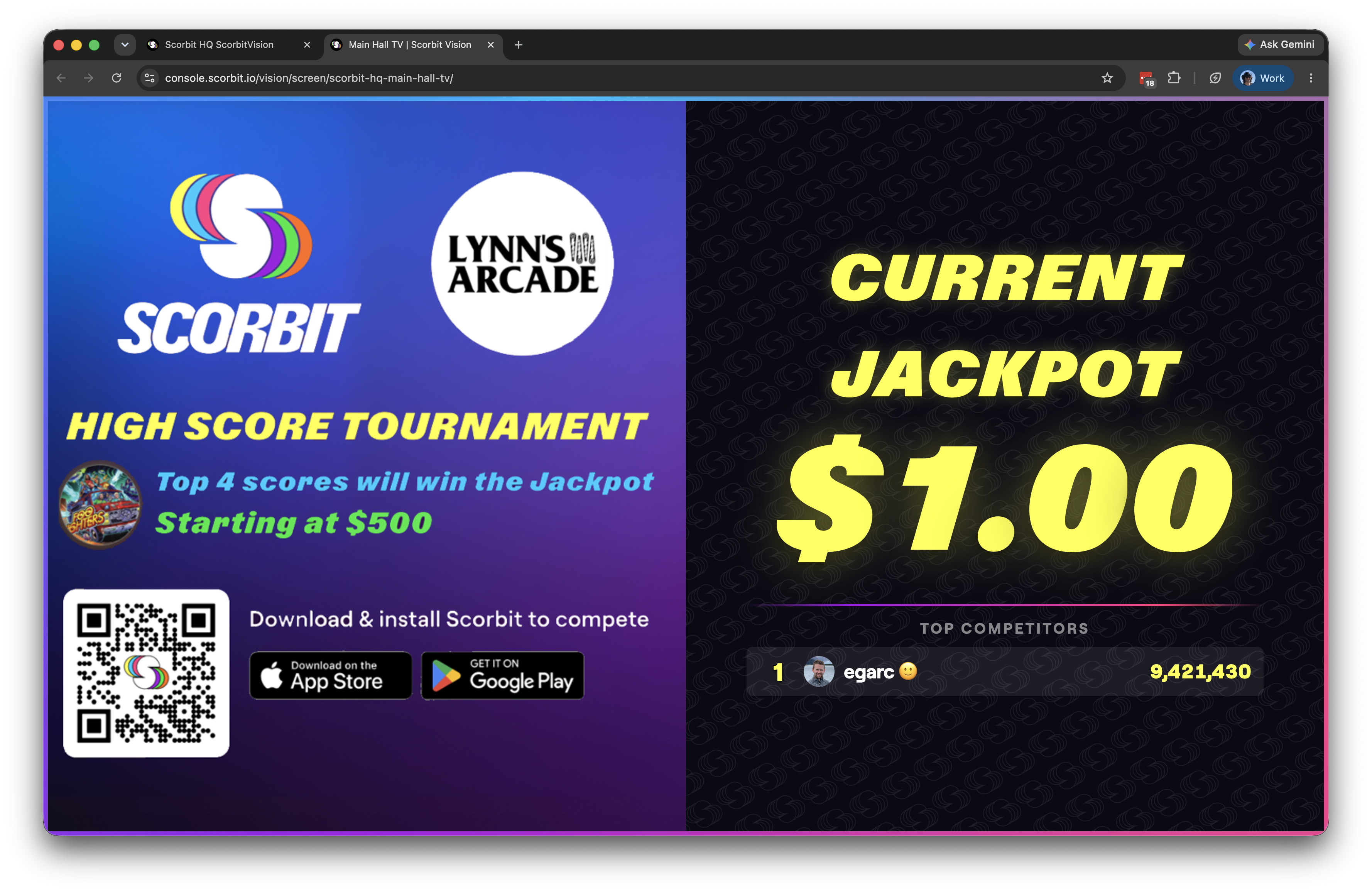
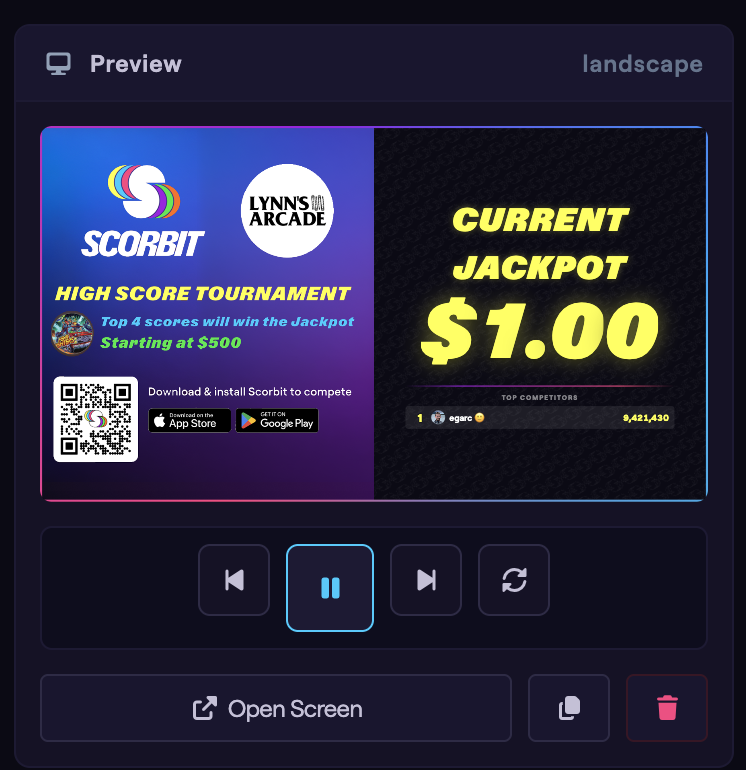
A ScorbitVision Promoboard pairs a promotional image with a competition, side by side on one screen. One half shows your image — a poster, flyer, or sponsor graphic — and the other half shows the competition's current jackpot and its top competitors. It is a punchy way to advertise a tournament and drive players to join.
Promoboards are one of the item types you can add to a screen's playlist, so before continuing, make sure you are familiar with the ScorbitVision Dashboard and how playlists work. A promoboard draws its standings from a competition, so you may also find the Competition Boards guide useful.
What a Promoboard Shows
A promoboard is split into two halves:
- Image half — the promotional image you upload or link.
- Data half — the paired competition's Current Jackpot (shown with an animated rolling-digit display) and a Top Competitors list of the leaders.
An optional money rain animation can be layered over the board for extra flair.
Adding a Promoboard
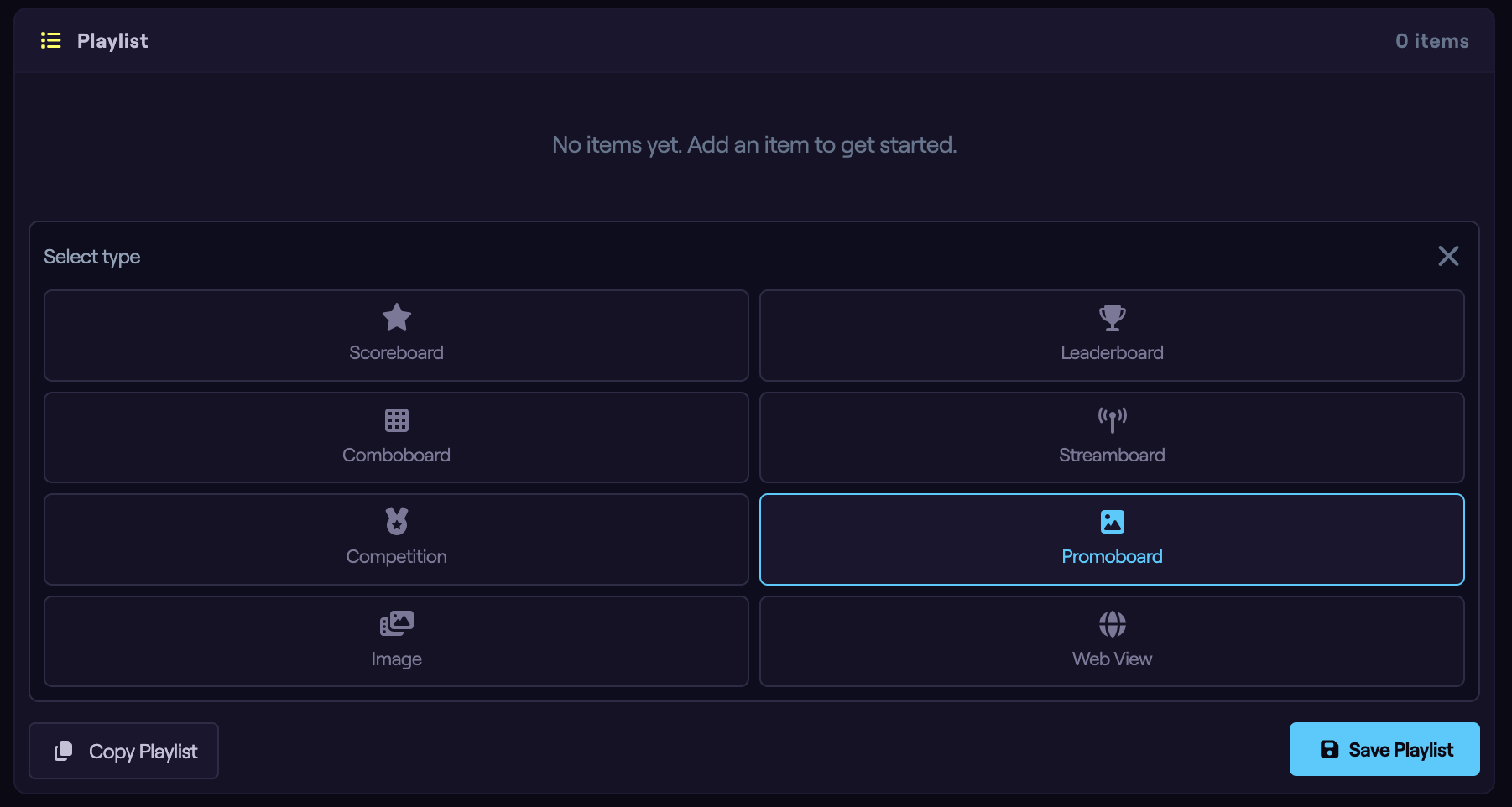
From the dashboard, select the screen you want to edit, then in the Playlist panel click Add Item and choose Promoboard. The new item is added to the playlist and its configuration panel opens below, with an inline preview at the top.
Choosing the Image
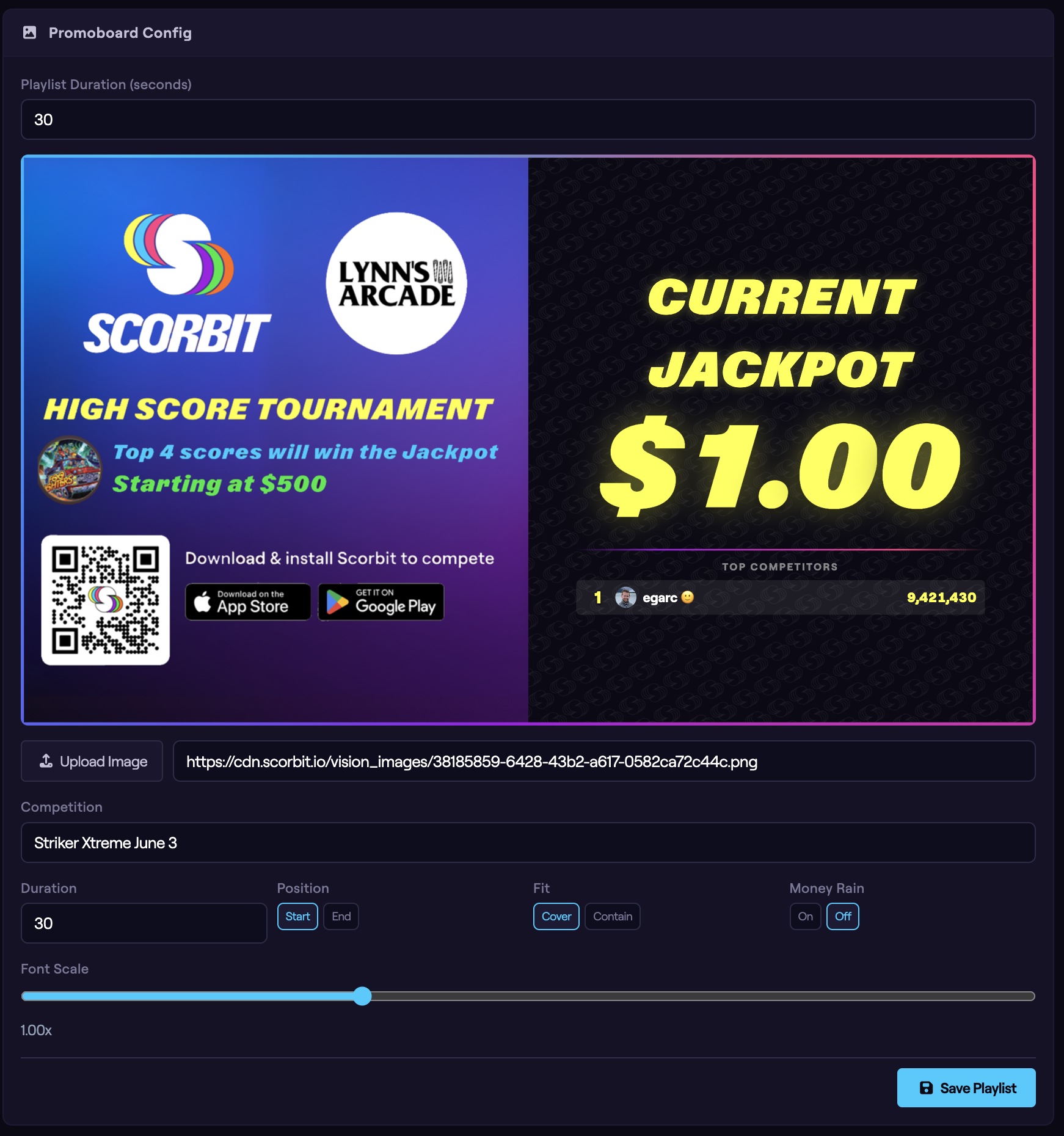
Add your promotional image in one of two ways:
- Click Upload Image to upload a file from your computer.
- Paste an image URL into the field beside it.
The inline preview updates so you can see how the image sits next to the competition data.
Choosing the Competition
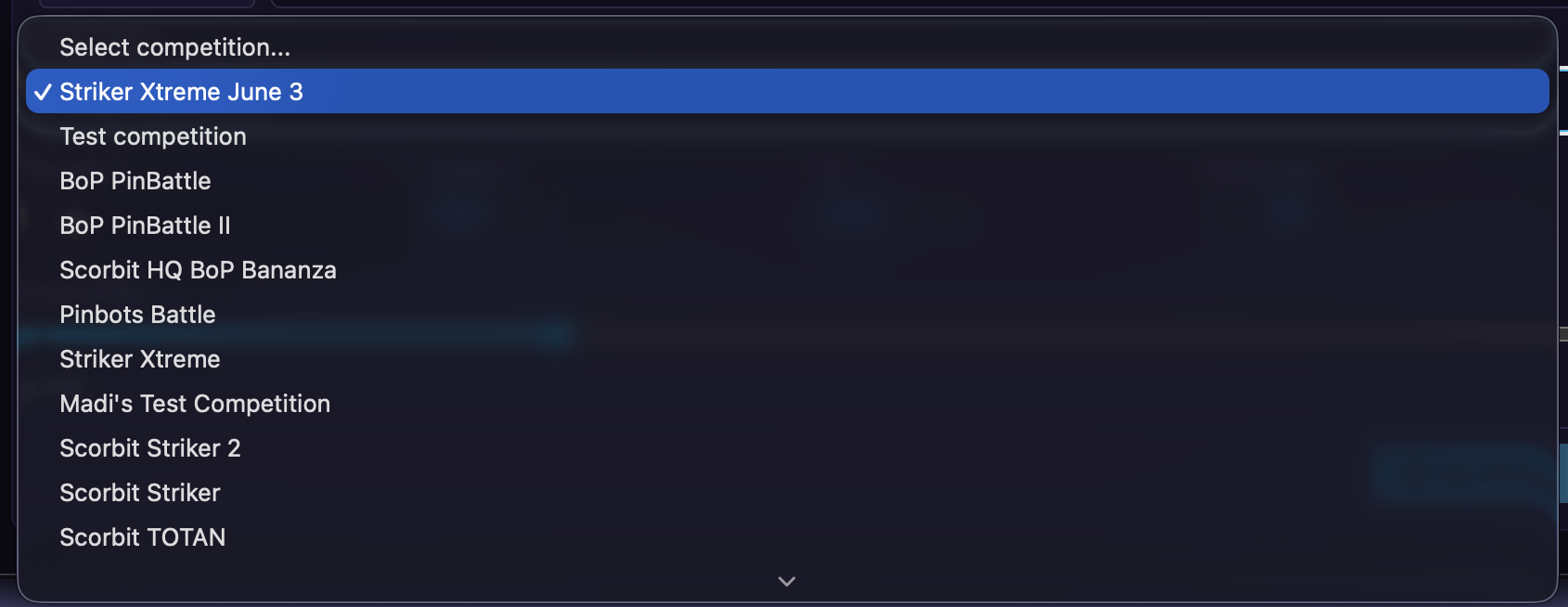
Use the Competition dropdown to select which competition's jackpot and standings appear on the data half. If no competitions are found for the venue, the panel will tell you so — create a competition on the Scorbit platform first, then it will be available here.
Layout and Display Options
A row of controls fine-tunes how the promoboard looks:
- Duration — how long the promoboard stays on screen, in seconds.
- Position — which side the image appears on: Start (the leading side) or End (the trailing side).
- Fit — how the image fills its half: Cover (fill the area, cropping if needed) or Contain (show the whole image, letterboxed if needed).
- Money Rain — turn the falling-money animation On or Off.

Font Scale
The Font Scale slider adjusts the size of the jackpot and competitor text, from 0.5× to 2×. The default is 1×.
Saving
Watch the inline preview and the Preview column as you adjust the settings. When you are satisfied, click Save Playlist to push your changes to the screen.
Next Steps
The next guide covers Images, for displaying a static image on a screen.