ScorbitVision Streamboards
A ScorbitVision Streamboard is a transparent overlay that brings live Scorbit scores into streaming software such as OBS. Instead of a full-screen board, a streamboard renders just the scores — as a lower-third bar or a side panel — on a transparent background, so you can layer it directly over your camera and gameplay feeds.
Streamboards are one of the item types you can add to a screen's playlist, so before continuing, make sure you are familiar with the ScorbitVision Dashboard and how playlists work.
For deeper, fully customized stream integrations, the Scorbit developer API is available. A streamboard is the quick, no-code way to get live scores on your stream.
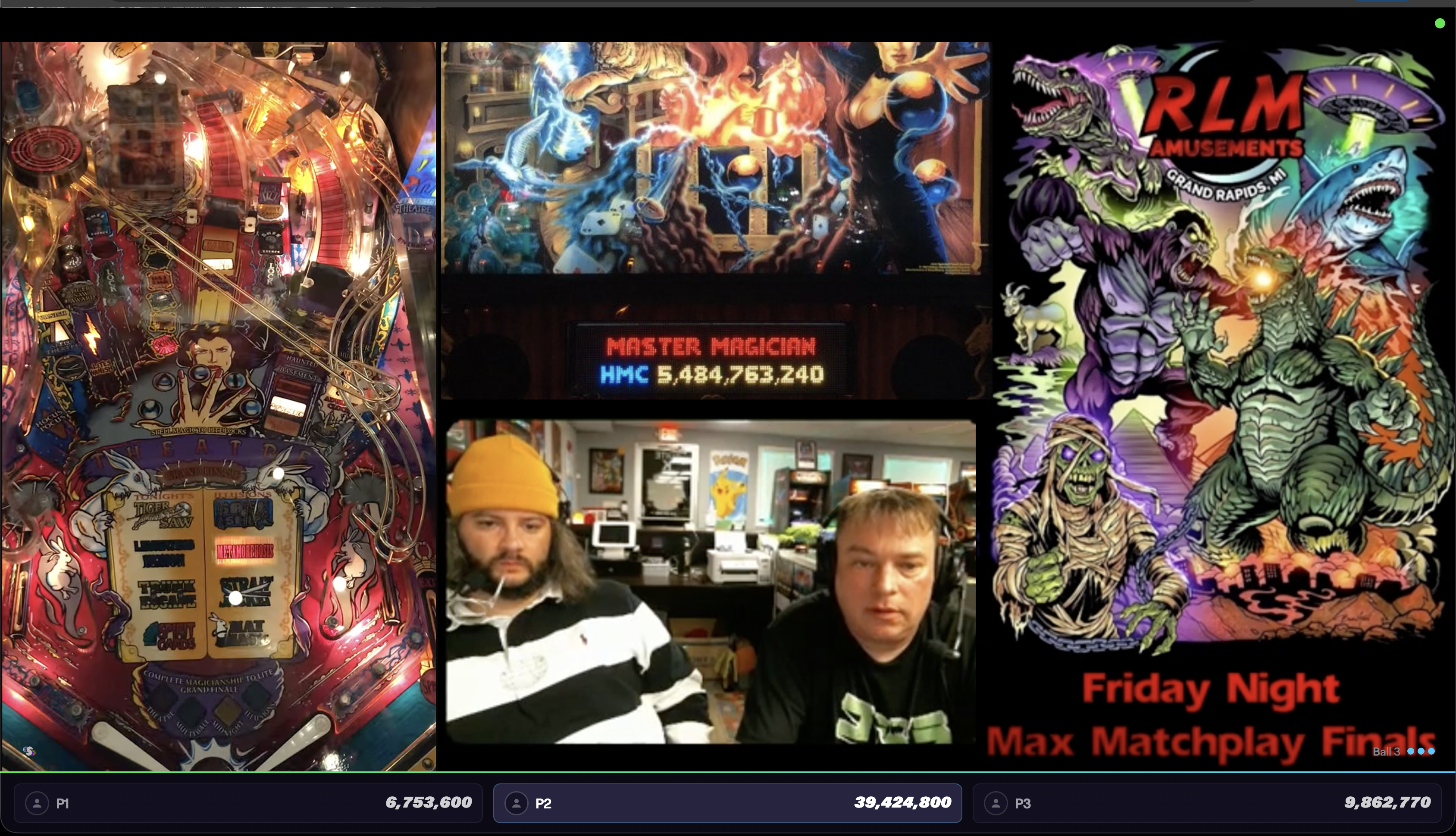
How Streamboards Are Used
A streamboard produces a screen URL with a transparent background. In your streaming software, add it as a browser source (or capture the browser window) and place it over your scene. Because the background is transparent, only the score graphics appear over your video.
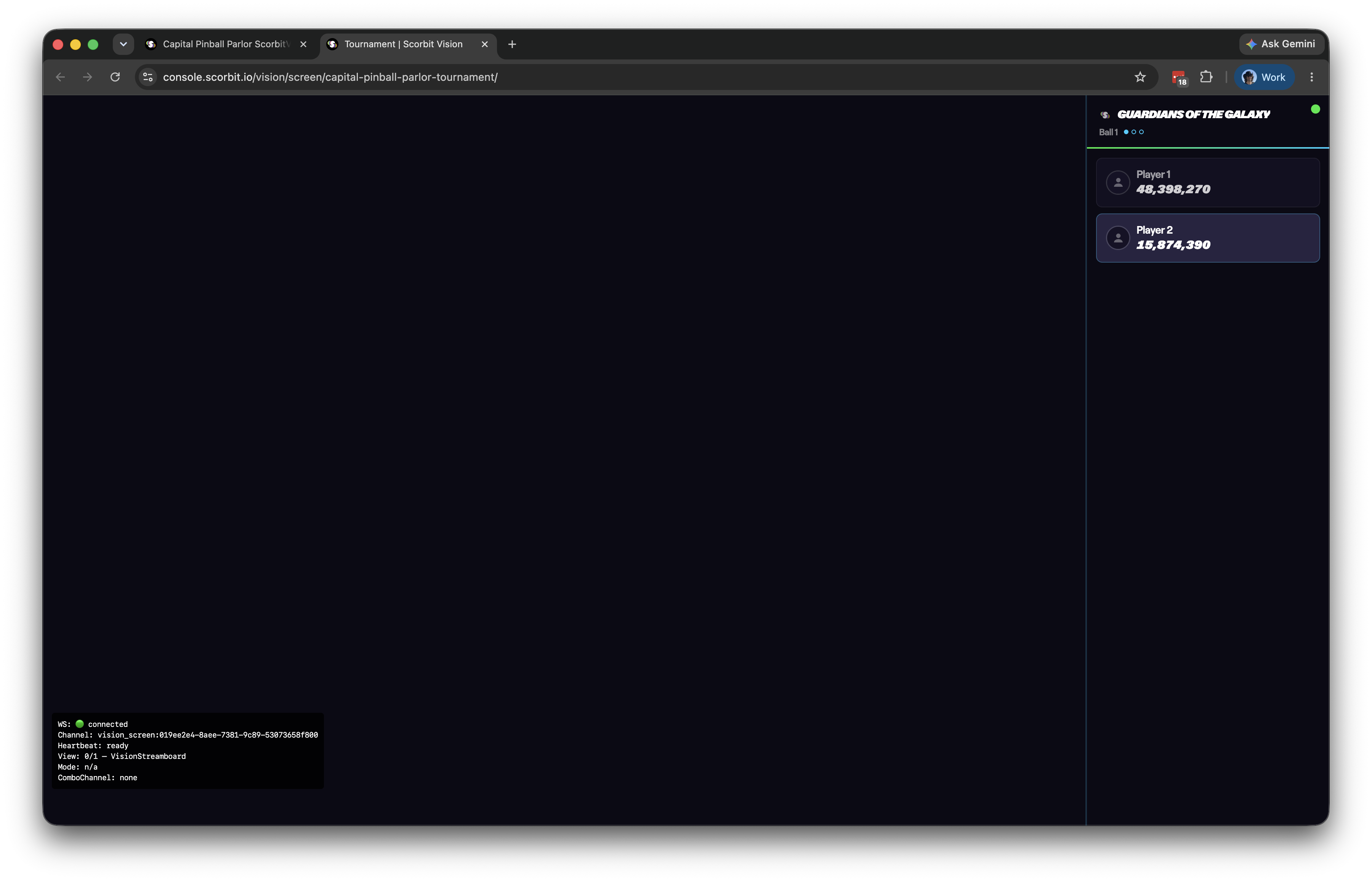
The screen URL is the one shown in Screen Settings on the dashboard. The overlay shows a small connection indicator — a green dot in the top corner — so you can confirm it is live.
Adding a Streamboard
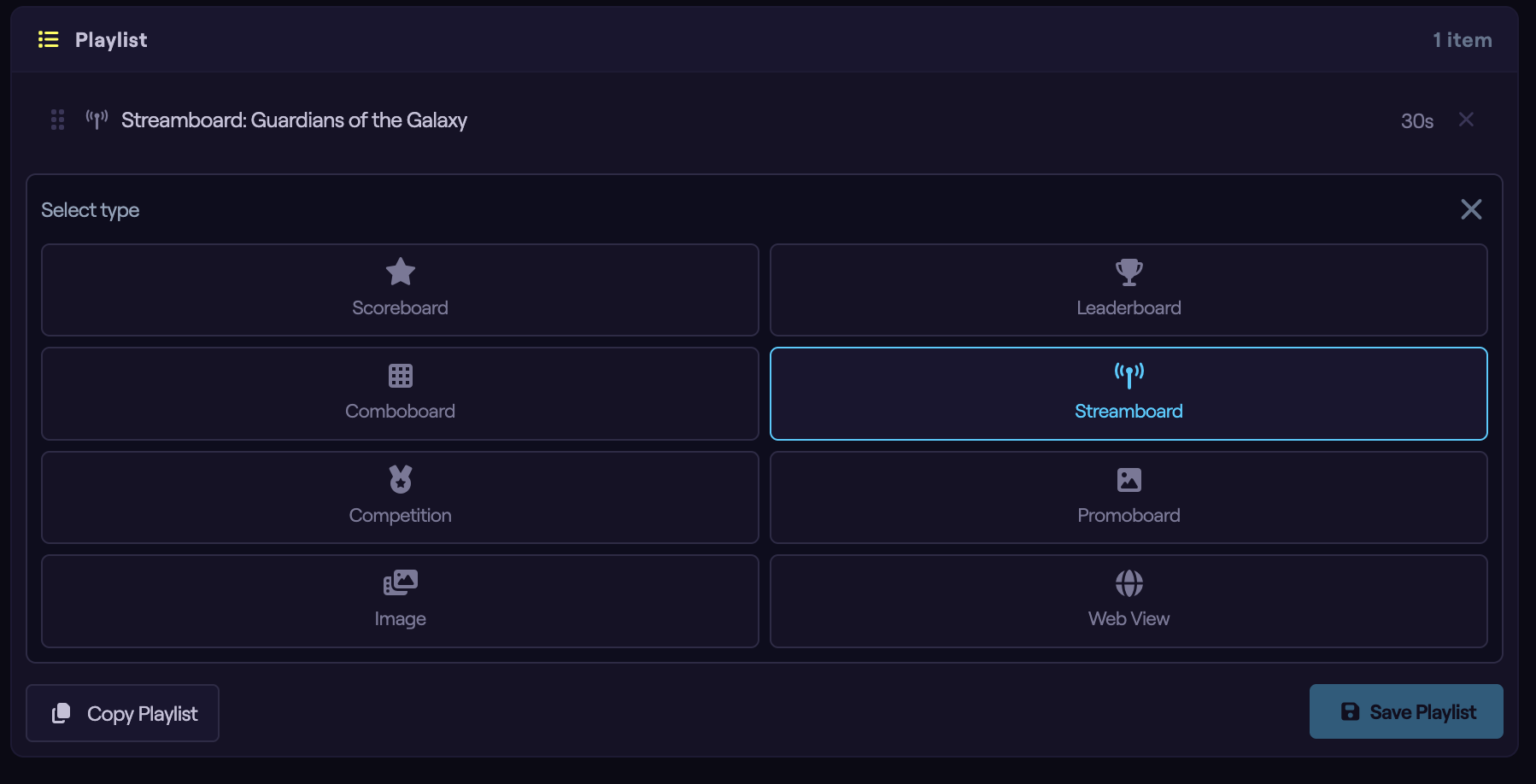
From the dashboard, select the screen you want to edit, then in the Playlist panel click Add Item and choose Streamboard. The new item is added to the playlist and its configuration panel opens below.
Tip
A screen used for streaming usually holds a single streamboard item, since you want one consistent overlay for the whole broadcast rather than a rotating playlist.
Choosing the Machine
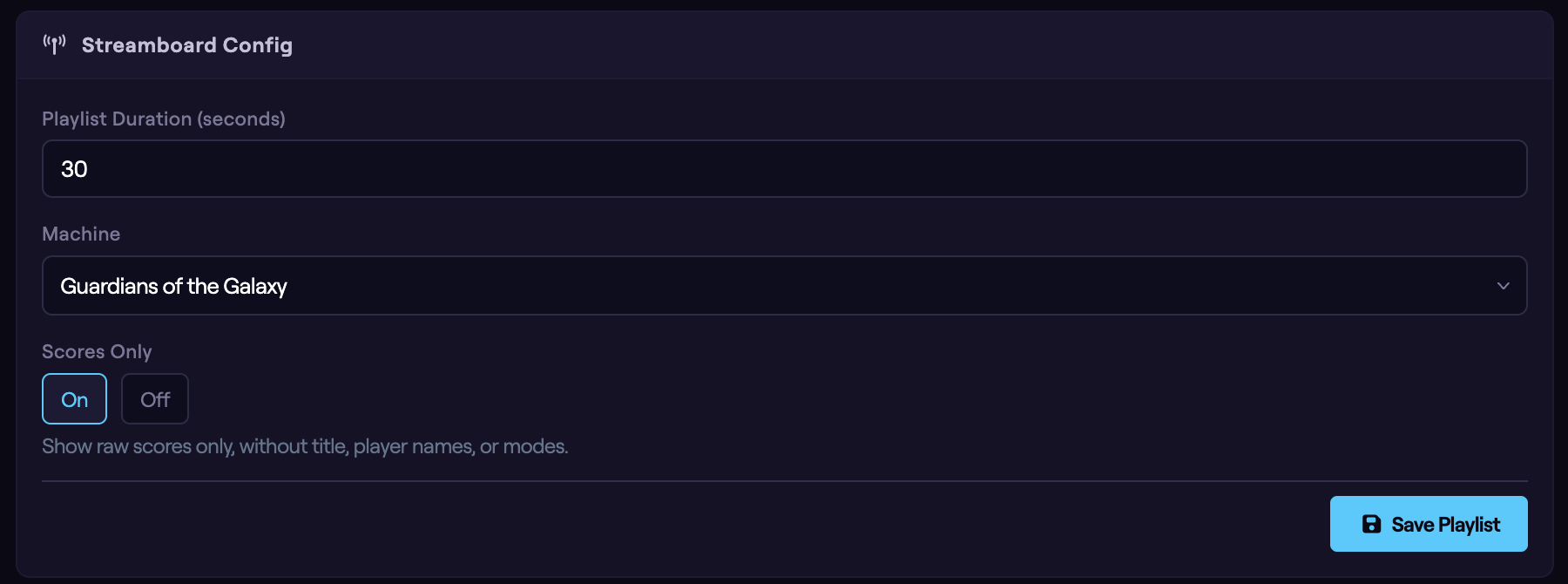
Use the Machine picker to search for and select the machine whose live scores you want to overlay on your stream.
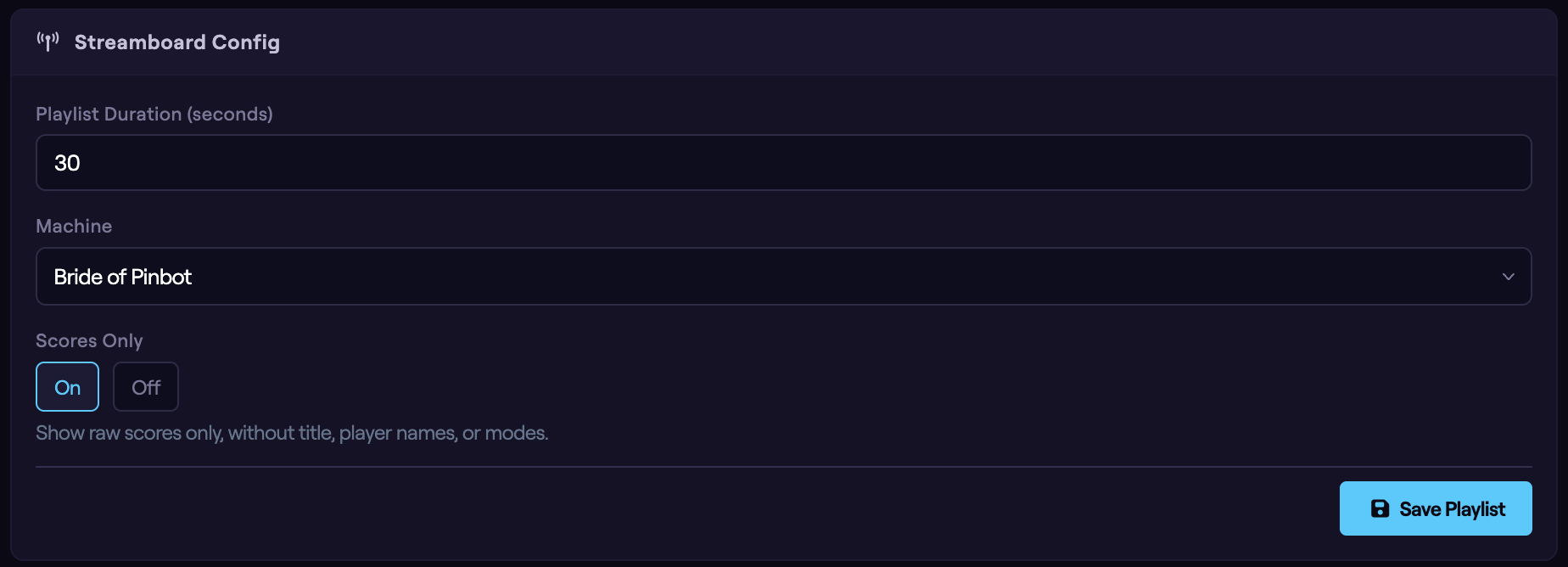
Scores Only
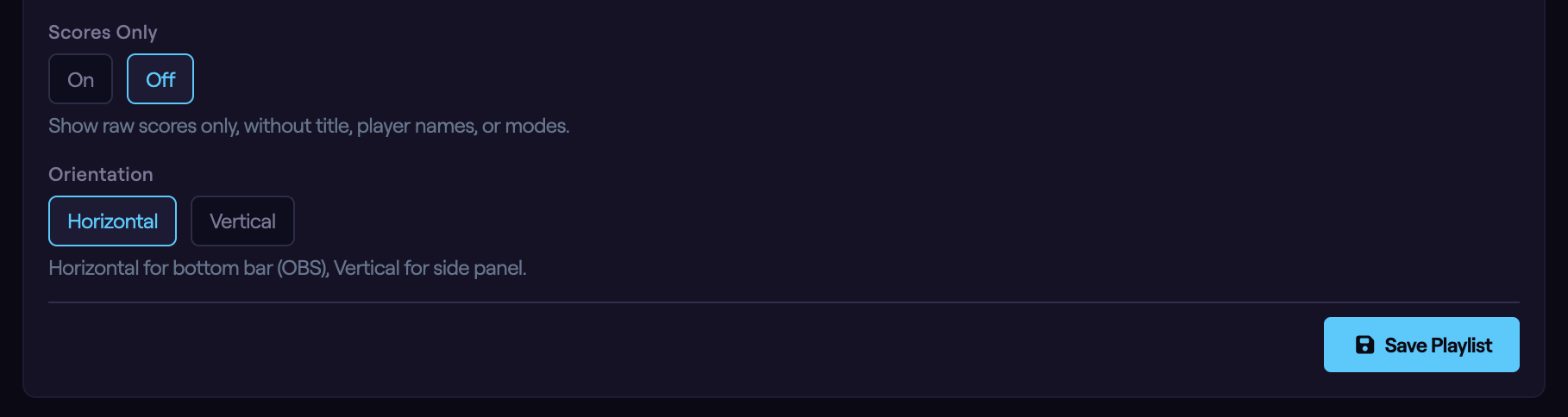
The Scores Only toggle controls how much information the overlay shows:
- On — show raw scores only, without the title, player names, or game modes. This is the most compact overlay.
- Off — show the full lower-third treatment, including player and game information.
Orientation
When Scores Only is off, choose the overlay's orientation:
- Horizontal — a bottom bar, ideal for the lower third of a standard widescreen stream (the common OBS layout).
- Vertical — a side panel, useful when you want scores along the edge of the frame.
The On-Overlay Control Panel — Press C
You do not have to return to the dashboard every time you want to change the overlay. With a streamboard's screen URL open in a browser, press the C key to bring up the Streamboard Setup control panel directly on the overlay — the quickest way to switch layouts while you dial in a scene in your streaming software.
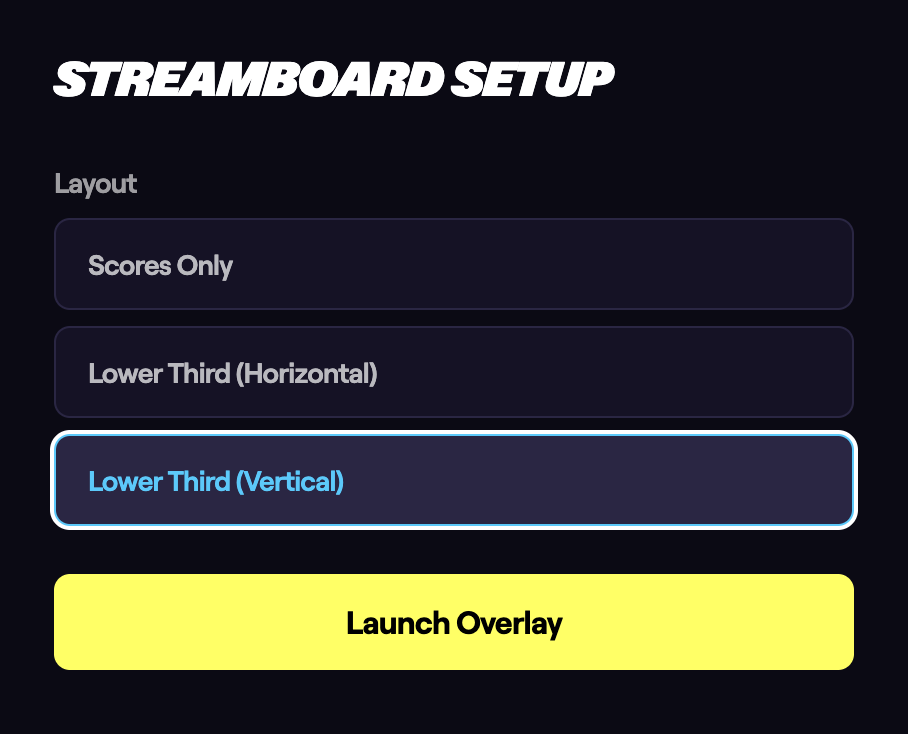
The panel offers a single Layout picker with the three overlay layouts, plus a button to apply your choice:
- Scores Only — raw scores only, the most compact overlay (matches Scores Only → On above).
- Lower Third (Horizontal) — a bottom bar for a standard widescreen stream.
- Lower Third (Vertical) — a side panel down one edge of the frame.
- Launch Overlay — apply the selected layout and start the live overlay.
Press C again to hide the control panel so it stays out of your capture. The panel is a local, on-screen control only — it never appears in the transparent overlay your viewers see.
Tip
Because the panel is toggled with C right on the overlay page, you can switch between Scores Only and the lower-third layouts mid-broadcast without touching the dashboard.
Setting Duration and Saving
If the streamboard is the only item on the screen, duration does not matter — it stays on continuously. If you combine it with other playlist items, set how long it stays on screen using the Playlist Duration field at the top of the configuration panel.
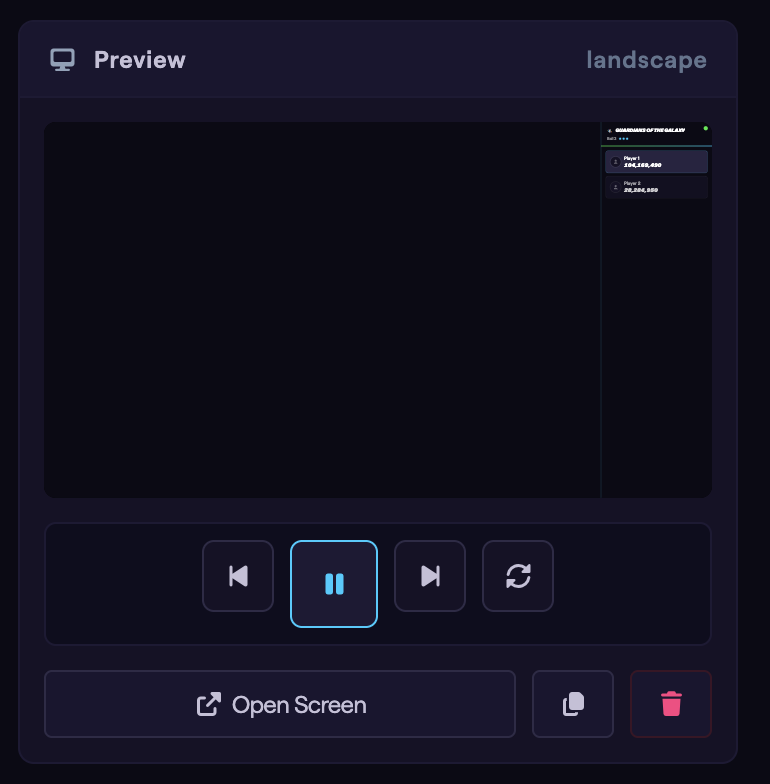
Watch the Preview column as you adjust the settings, then click Save Playlist to push your changes to the screen. When you are ready to stream, copy the Screen URL from Screen Settings into your streaming software as a browser source.
Next Steps
The next guide covers Competition Boards, for displaying tournament standings on a screen.