ScorbitVision Leaderboards
A ScorbitVision Leaderboard displays the top scores for a machine, a game title, or a specific edition of a game. Leaderboards are one of the item types you can add to a screen's playlist, so before continuing, make sure you are familiar with the ScorbitVision Dashboard and how playlists work.
Machines do not need a Scorbitron installed to appear on a leaderboard — any scores recorded on the Scorbit platform can be displayed. A common use is to show the top scores for the machines in a venue, such as a home game room, an arcade, or a bar, with a fresh leaderboard rotating onto the screen every few seconds alongside your other content.
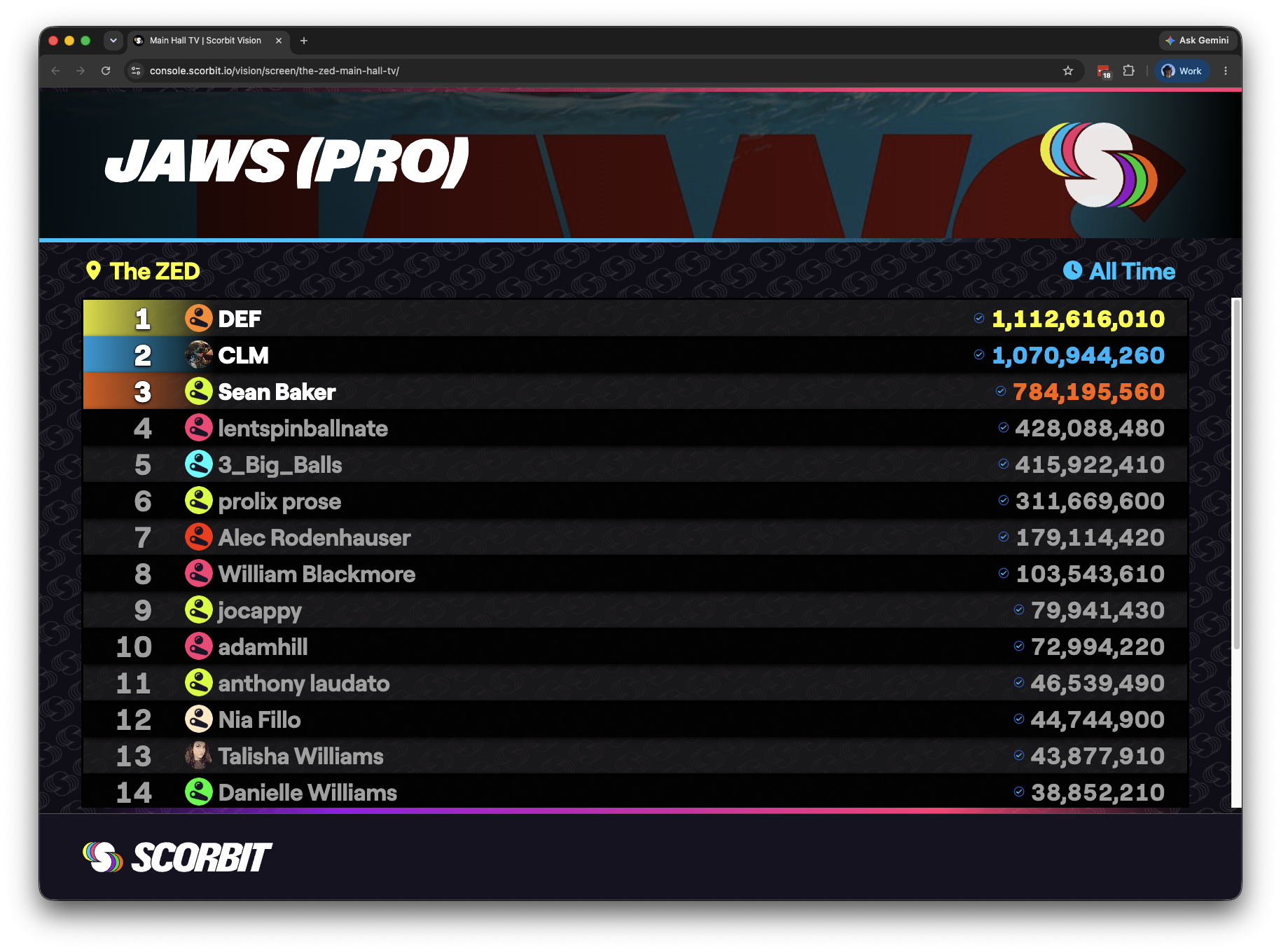
Adding a Leaderboard
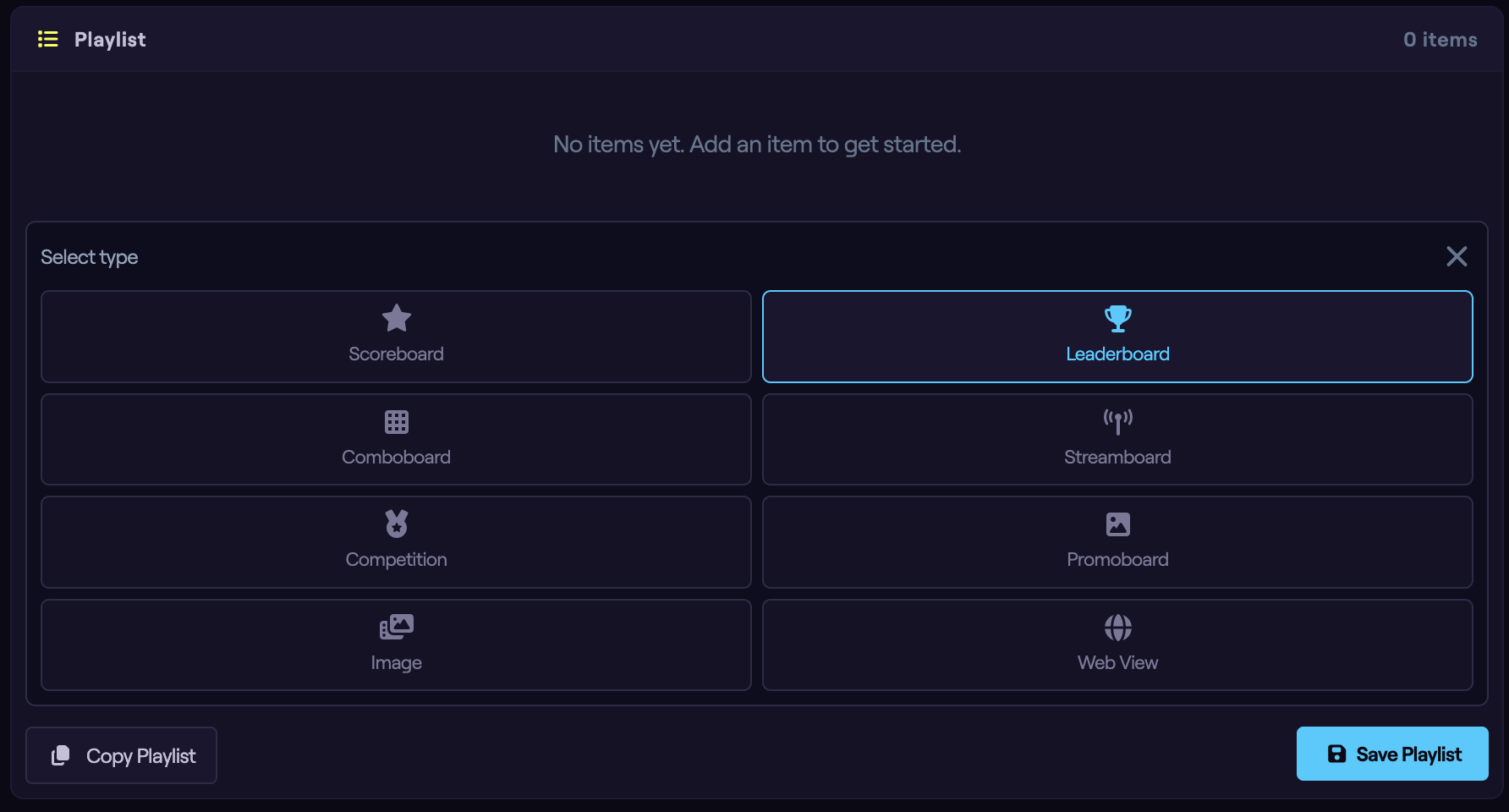
From the dashboard, select the screen you want to edit, then in the Playlist panel click Add Item and choose Leaderboard. The new item is added to the playlist and its configuration panel opens below.
Choosing the Scope
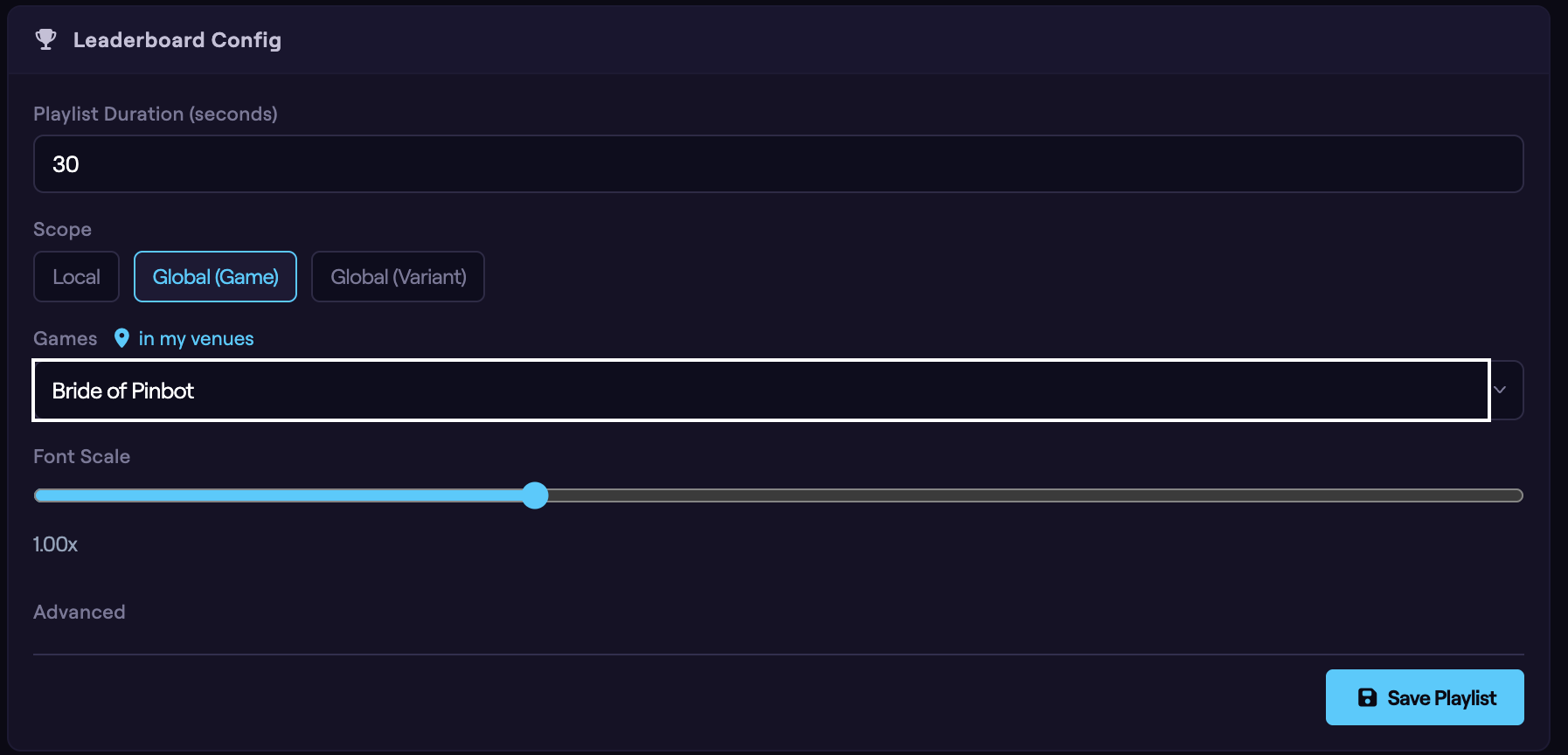
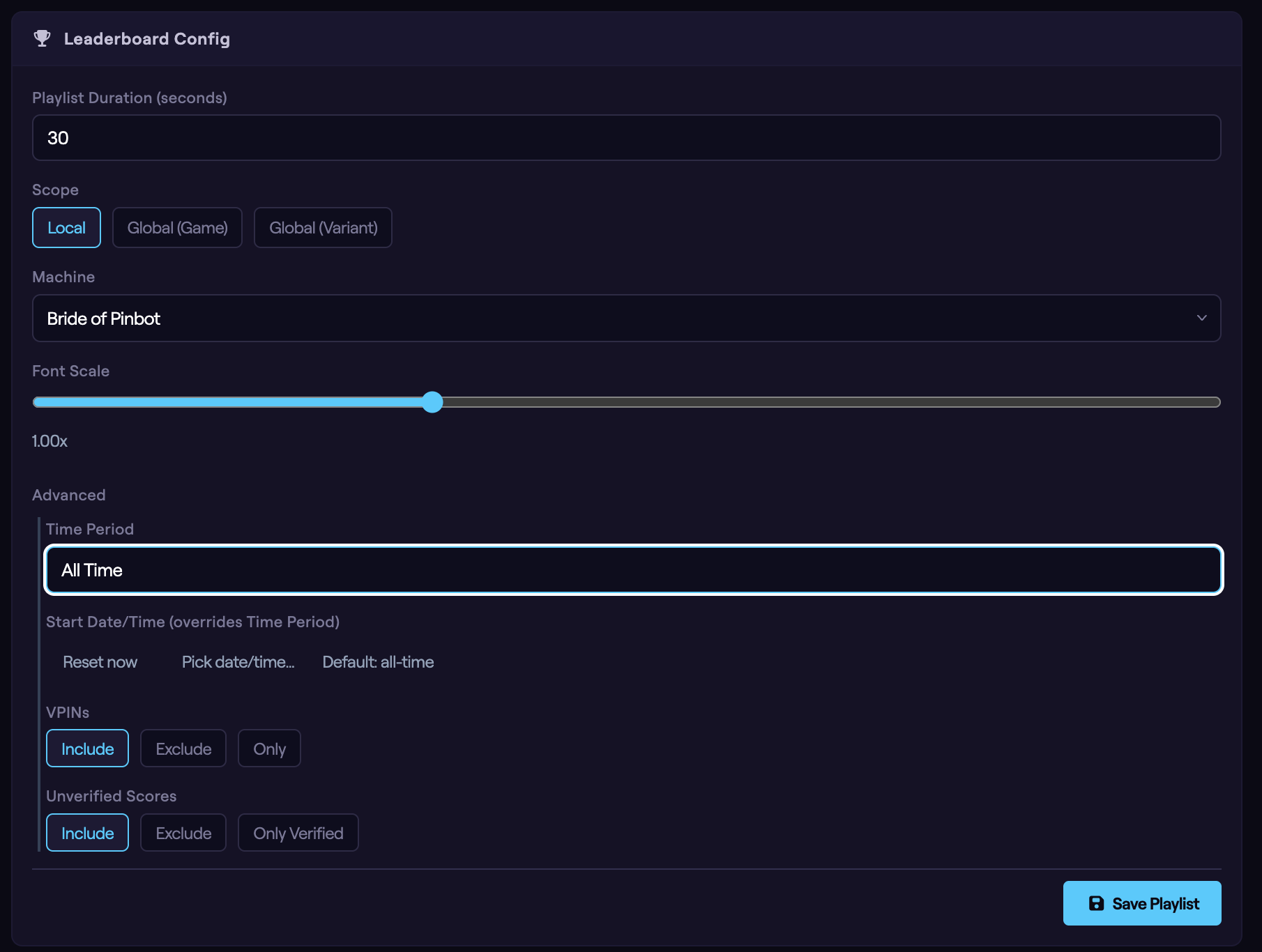
The Scope determines which machines' scores the leaderboard draws from. This is the most important choice for a leaderboard, and it controls which other options appear.
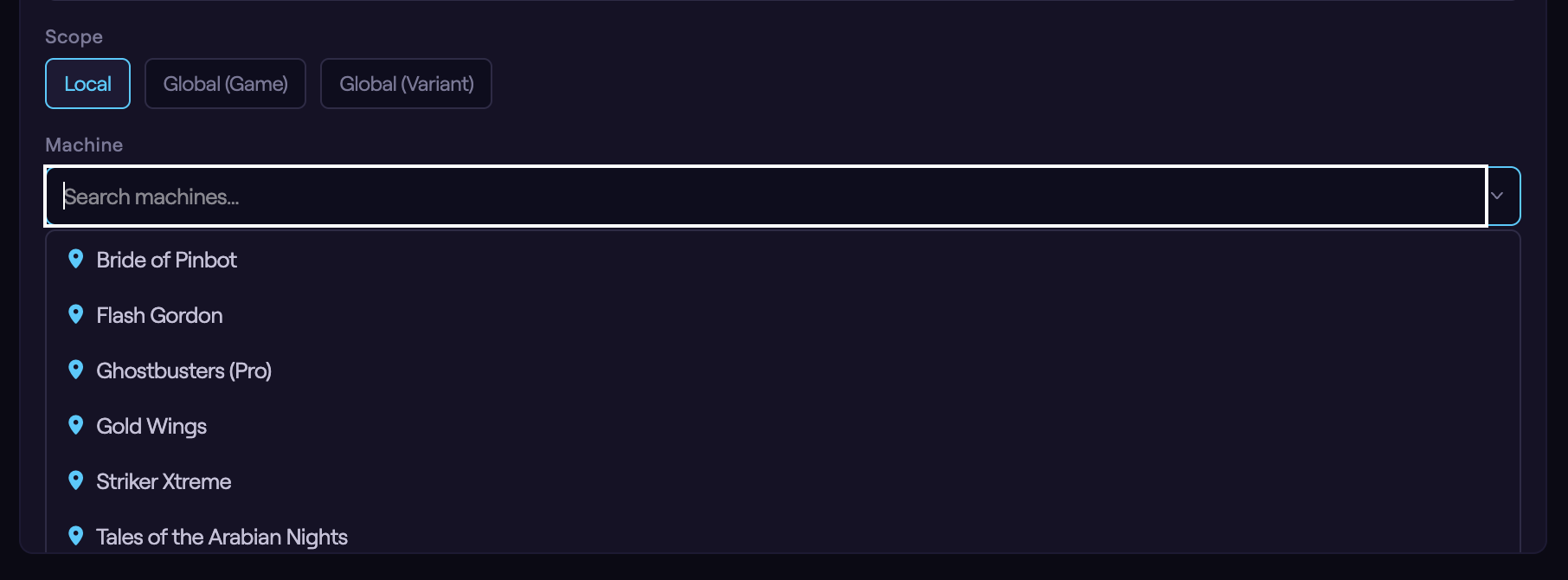
- Local — scores from a single machine at your venue. Choose this for the classic "high scores on this machine" leaderboard. When selected, a Machine picker appears; search for and choose one of your machines.
- Global (Game) — scores from every machine of a game title, anywhere on the Scorbit platform. Choose this to compete against players worldwide on a given game. When selected, a Games picker appears; choose the game title.
- Global (Variant) — scores from a specific edition or variant of a game across the platform — for example, a particular Pro, Premium, or LE edition. When selected, you choose the Game, then select the specific Variant / Edition from the list.
Font Scale
The Font Scale slider adjusts the size of the text on the leaderboard, from 0.5× to 2×. Use it to fit more rows on screen, or to enlarge the text for a display viewed from across a room. The default is 1×.
Advanced Options
Click Advanced to expand additional filters. All of these are optional — a leaderboard works with just a scope and a machine or game selected.
Time Period
By default, a leaderboard shows All Time scores. To limit it to a recent window, choose one of the preset periods:
- Last 14 Days
- Last 30 Days
- Last 90 Days
- Last 6 Months
- Last Year
A rolling time period is great for keeping competition fresh — for example, a "Last 30 Days" leaderboard gives newer players a chance to reach the top without competing against years of accumulated scores.
Start Date/Time
If you need a leaderboard that begins on a specific date, set a Start Date/Time. This overrides the Time Period setting and counts every score from that moment forward.
This is useful for tournaments and special events with a fixed start, or for a machine you recently acquired: set the start date to when you took ownership so the leaderboard reflects only scores recorded since then, while the machine's earlier history remains intact on the platform.
VPINs
Control whether virtual pinball (VPIN) scores are included:
- Include — show both physical and virtual pinball scores (the default).
- Exclude — show only physical machine scores.
- Only — show only virtual pinball scores.
Unverified Scores
Control whether scores that have not been verified by Scorbit appear:
- Include — show all scores (the default).
- Exclude — hide unverified scores.
- Only Verified — show only verified scores.
Excluding unverified scores is useful for competitive or public-facing leaderboards where you want only trusted results on display.
Event Filter
If the venue has events configured, an Event Filter lets you restrict the leaderboard to scores recorded as part of a specific event. If your venue has no events, this option does not appear.
Setting Duration and Saving
Set how long the leaderboard stays on screen using the Playlist Duration field (in seconds) at the top of the configuration panel, or by clicking the duration on the playlist item.
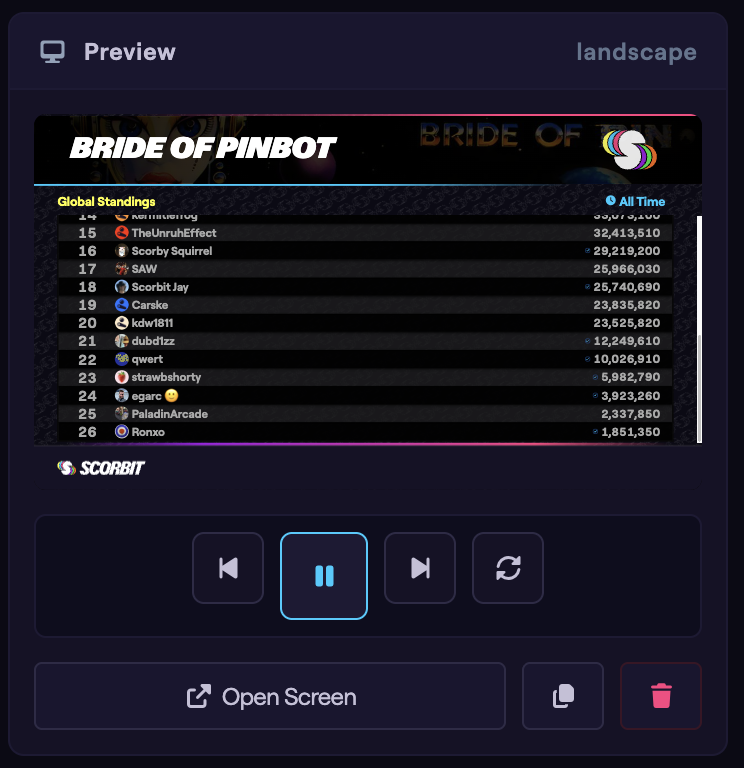
As you make changes, watch the Preview column on the right to see how the leaderboard will look. When you are satisfied, click Save Playlist to push your changes to the screen.
Next Steps
To display more than one board at a time on a single screen — for example several leaderboards side by side — use a Comboboard. For live, in-progress scores rather than top scores, use a Scoreboard. Both are covered in their own guides, which will follow in this series.