For Machine Owners
If you own a Scorbit-enabled pinball machine, at home or at your venue, set it up from the app. For installing the hardware itself, see the Scorbit Hardware guide.
Example: add your machine and activate Scorbit
- Open Profile → Settings → My Machines and tap +.
- Select the game, then its variant. Optionally choose a venue. Turn on Virtual (VPIN) Machine if it's a virtual pinball cabinet.
- Tap Create Machine.
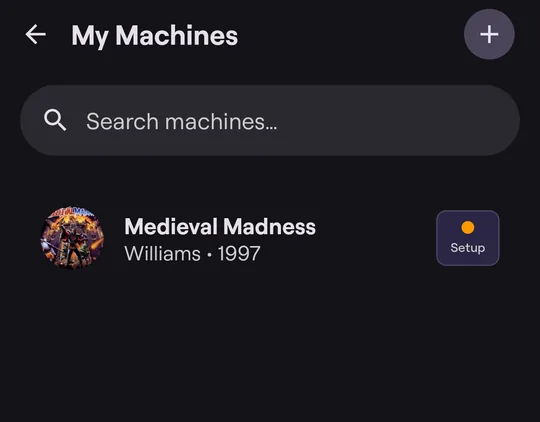
- Back in My Machines, the new machine shows Setup. Tap that to open Machine Details.
-
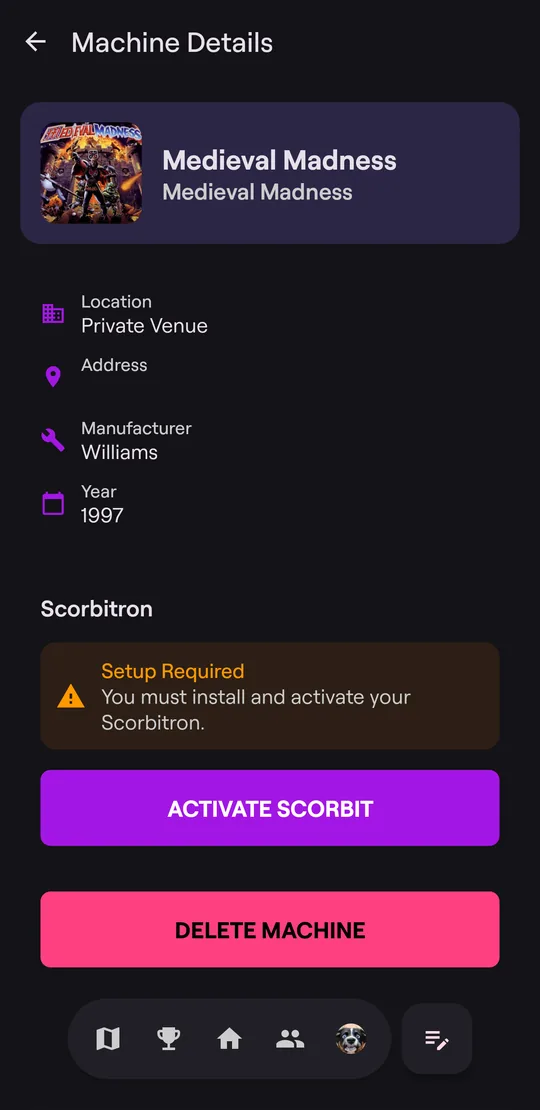
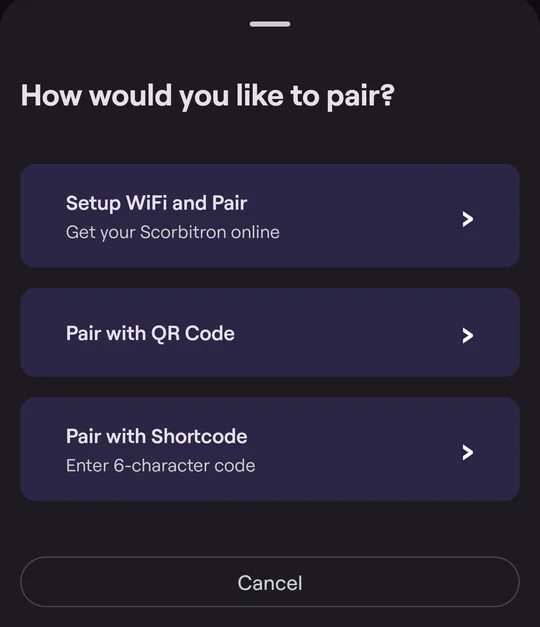
Tap ACTIVATE SCORBIT and choose how to pair:
- Setup WiFi and Pair: for a Scorbitron. Press the pairing button on the Scorbitron, and the app finds it, then connects it to your Wi-Fi network.
- Pair with QR Code: for games that show a pairing QR code on their own display, such as Jersey Jack Pinball games (in the game's diagnostics/utilities menu).
- Pair with Shortcode: for games that show a 6-character pairing code on their own display, such as Pulp Fiction (the Pairing Short Code item in the game's main menu).
The Scorbit Hardware guide for your machine says which method it uses.
When pairing finishes, the machine shows Active, and games on it are scored automatically.
Manage a machine
Machine Details also lets you:
- Update WiFi Settings, if the Scorbitron moves to a new network;
- Update Firmware, on supported Stern Spike 2 machines;
- at venues with a Scorbit agreement, set Payment Settings (Free Play, a price per game, an external payment system, or Scorbit Digital Payments). Only the venue owner can change these;
- Delete Machine.
Private venues
Machines at home usually belong to a private venue. Your private venues and their machines appear in the Collections tab of your profile.
Only people on a private venue's access list can find it and claim slots on its machines. The current Scorbit app can't edit access lists.