ScorbitVision Competition Boards
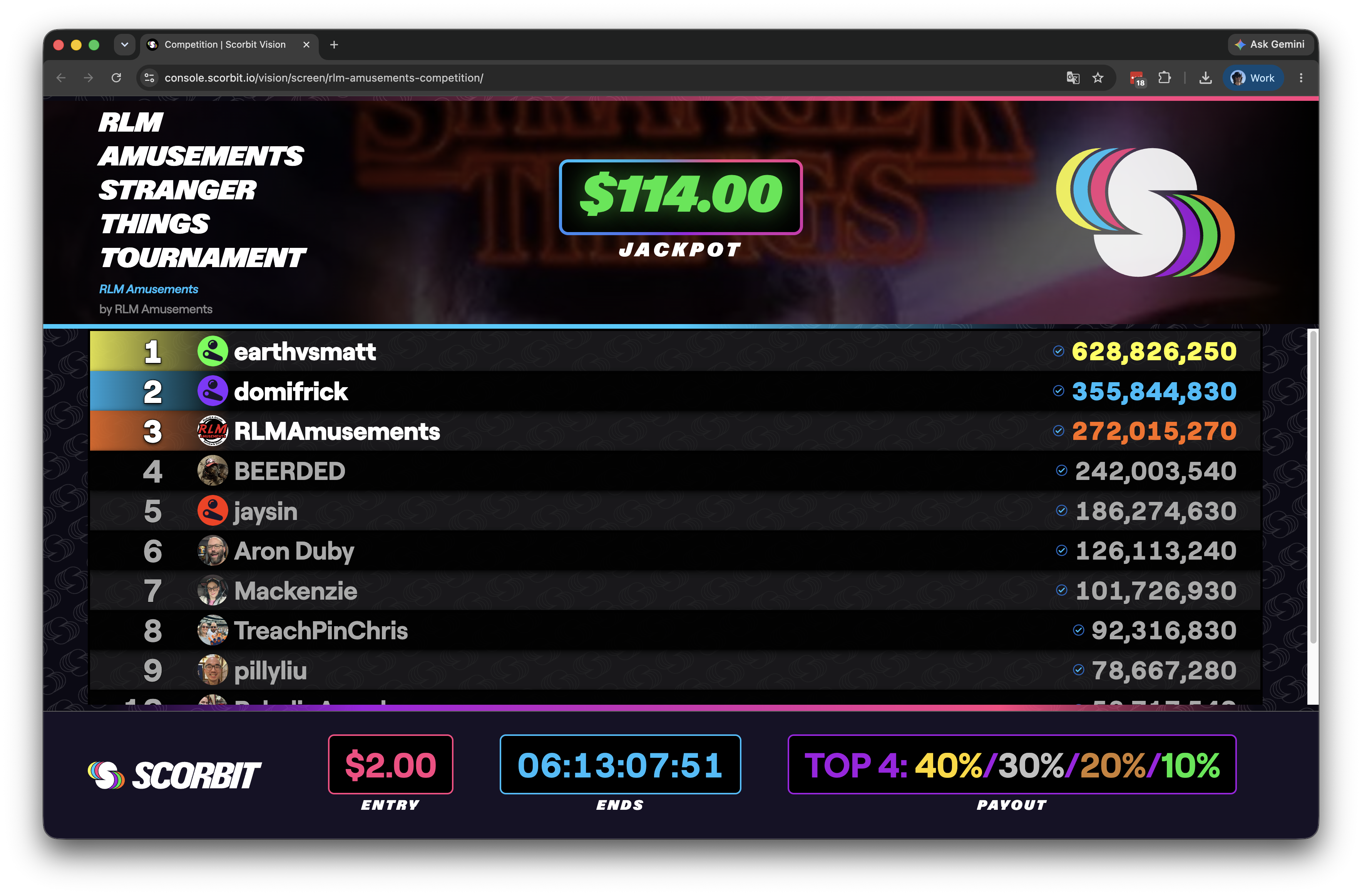
A ScorbitVision Competition Board displays tournament standings on a screen. It shows the competition name, the venue and organizer, an optional jackpot amount, and a ranked table of competitors — ideal for keeping players up to date during a league night or tournament.
Competition Boards are one of the item types you can add to a screen's playlist, so before continuing, make sure you are familiar with the ScorbitVision Dashboard and how playlists work.
Competitions are created and managed elsewhere on the Scorbit platform; a Competition Board simply displays the ones already associated with your venue.
What a Competition Board Shows
For each competition, the board displays:
- The competition name, with the venue shown as a subtitle and the organizer credited beneath it.
- An optional jackpot amount, when the competition has one.
- A standings table ranking the competitors.
When more than one competition is displayed, the board cycles through them automatically.
Adding a Competition Board
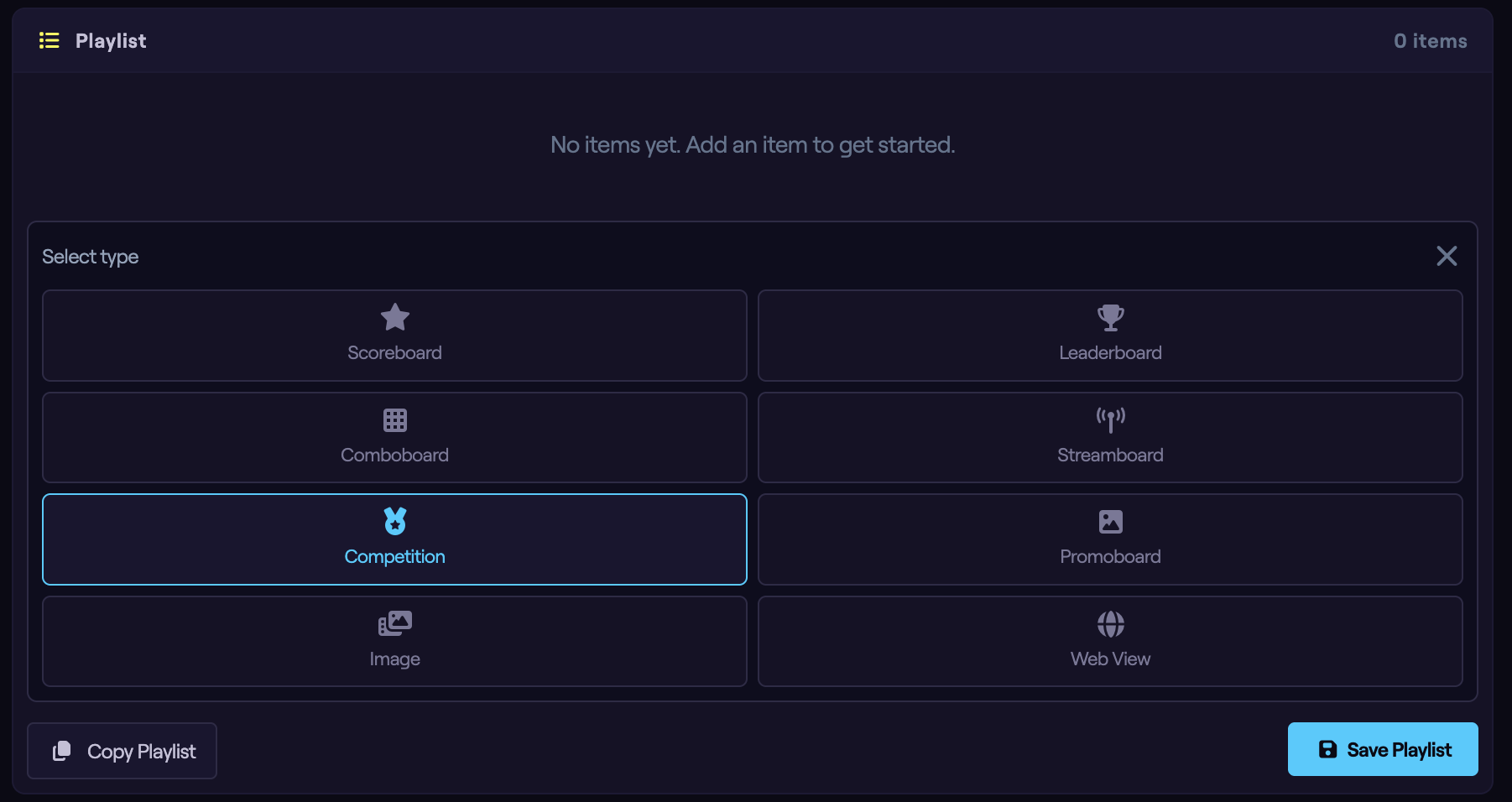
From the dashboard, select the screen you want to edit, then in the Playlist panel click Add Item and choose Competition. The new item is added to the playlist and its configuration panel opens below.
Choosing Competitions
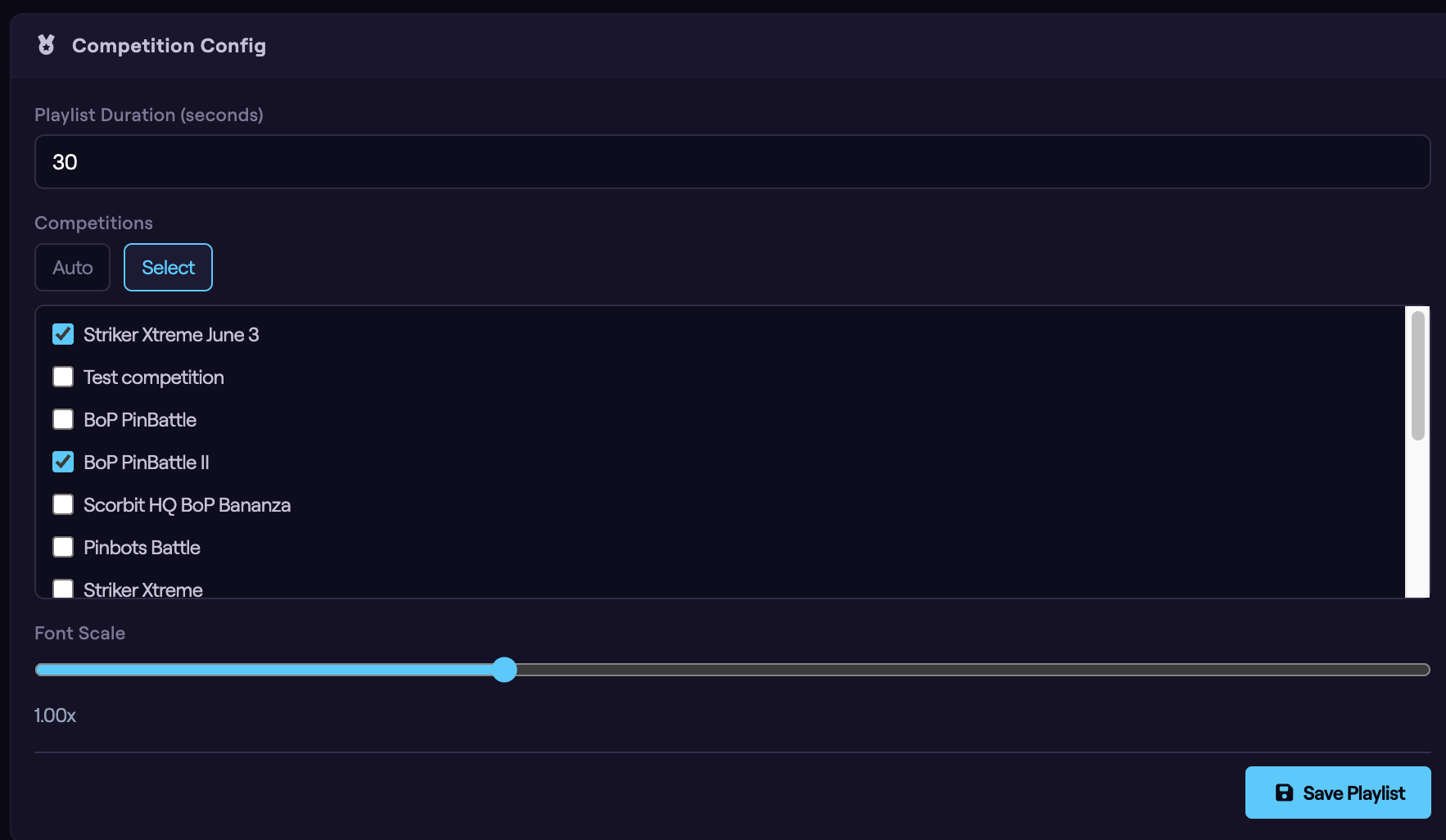
The Competitions option controls which tournaments appear:
- Auto — display all active competitions at the venue. This keeps the board current as competitions start and end, with no manual maintenance.
- Select — choose specific competitions from a checklist.
If no competitions are found for the venue, the configuration panel will tell you so. Create a competition on the Scorbit platform first, then it will be available here.
Font Scale
The Font Scale slider adjusts the size of the on-screen text, from 0.5× to 2×. Use a larger scale for displays viewed from a distance, or a smaller scale to fit more standings on screen. The default is 1×.
Setting Duration and Saving
Set how long the competition board stays on screen using the Playlist Duration field at the top of the configuration panel, or by clicking the duration on the playlist item. When several competitions are shown, the board cycles through them within this time.
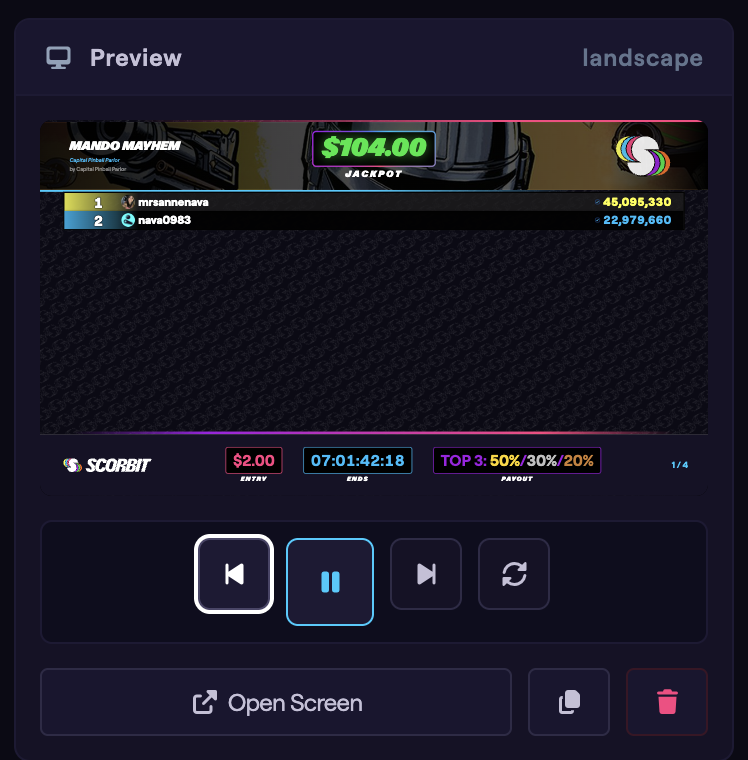
Watch the Preview column as you adjust the settings, then click Save Playlist to push your changes to the screen.
Next Steps
The next guide covers Promoboards, which pair a promotional image with a competition.