ScorbitVision Comboboards
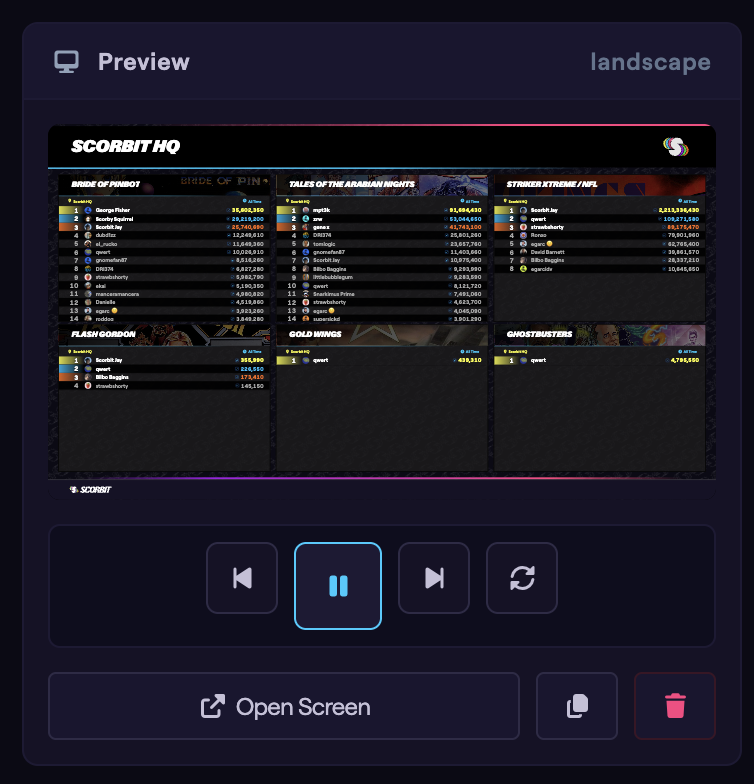
A ScorbitVision Comboboard displays several boards at once on a single screen, arranged in a grid of tiles. Each tile can be a leaderboard or a live scoreboard, so a comboboard is the way to show many machines together — for example, every machine in your game room on one TV.
Comboboards are one of the item types you can add to a screen's playlist, so before continuing, make sure you are familiar with the ScorbitVision Dashboard, Scoreboards, and Leaderboards.
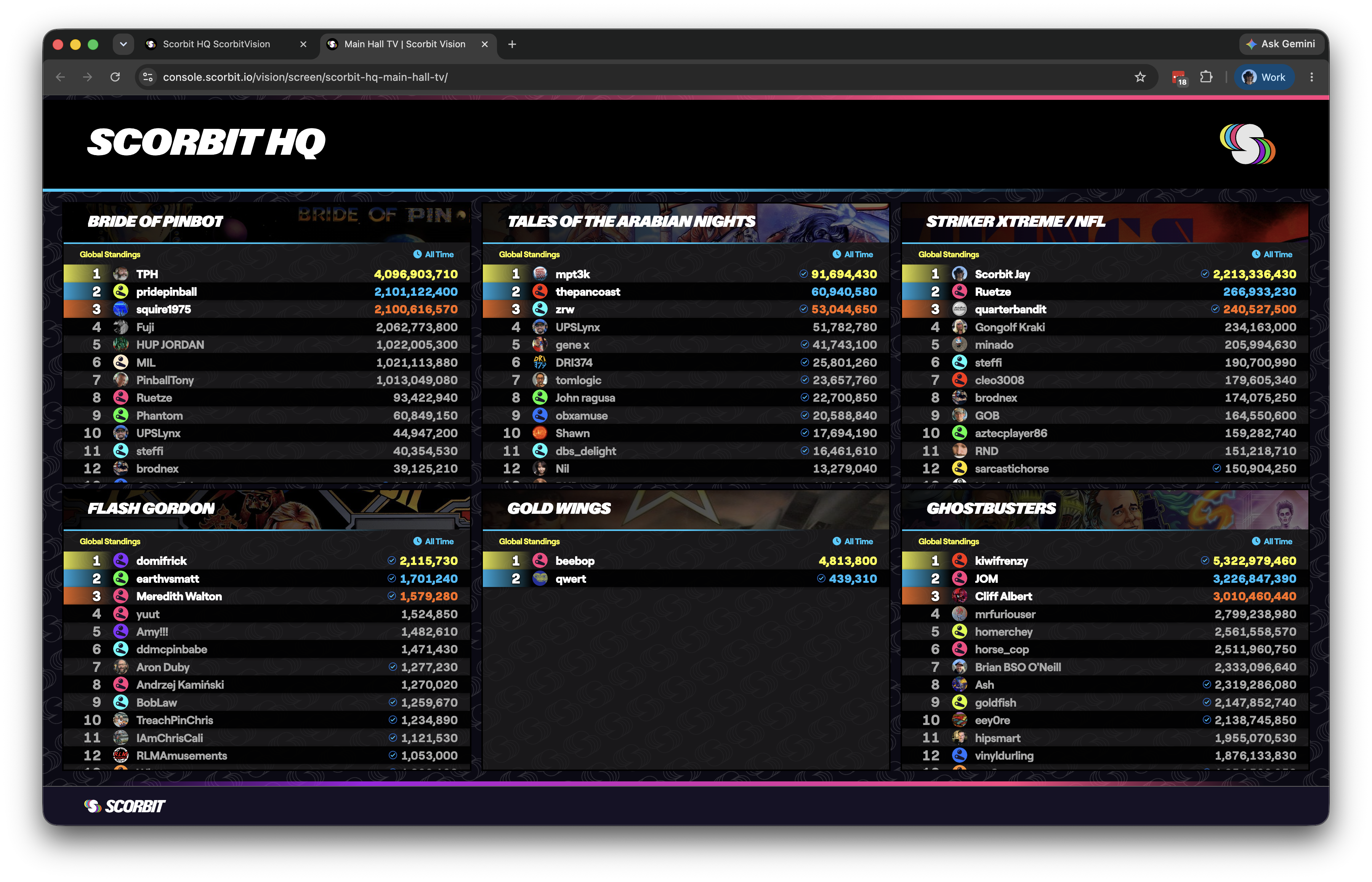
Adding a Comboboard
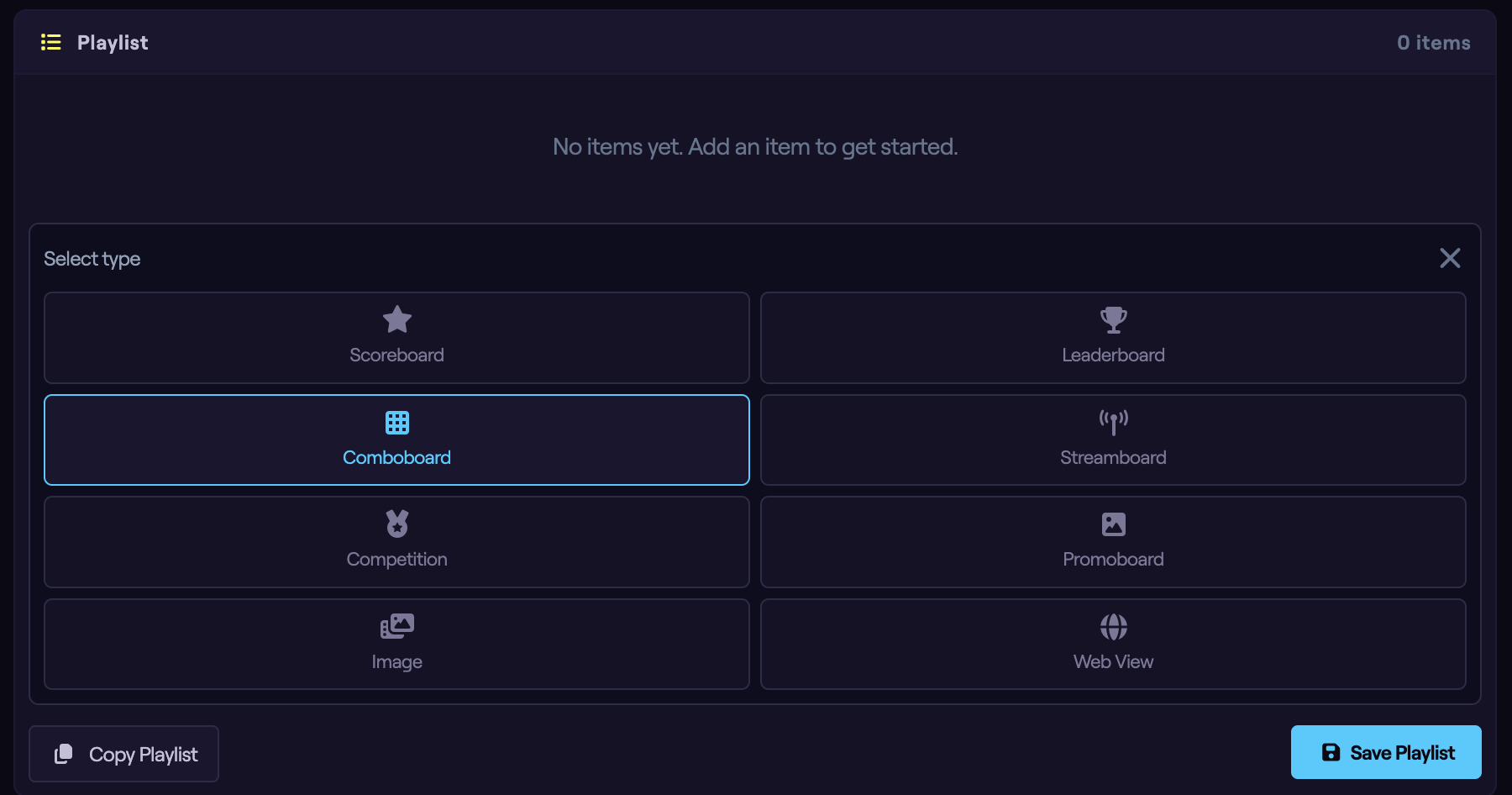
From the dashboard, select the screen you want to edit, then in the Playlist panel click Add Item and choose Comboboard. The new item is added to the playlist and its configuration panel opens below.
Default Board Mode
The Default Board Mode sets what kind of board the tiles display. A short hint beside the buttons describes the current choice.
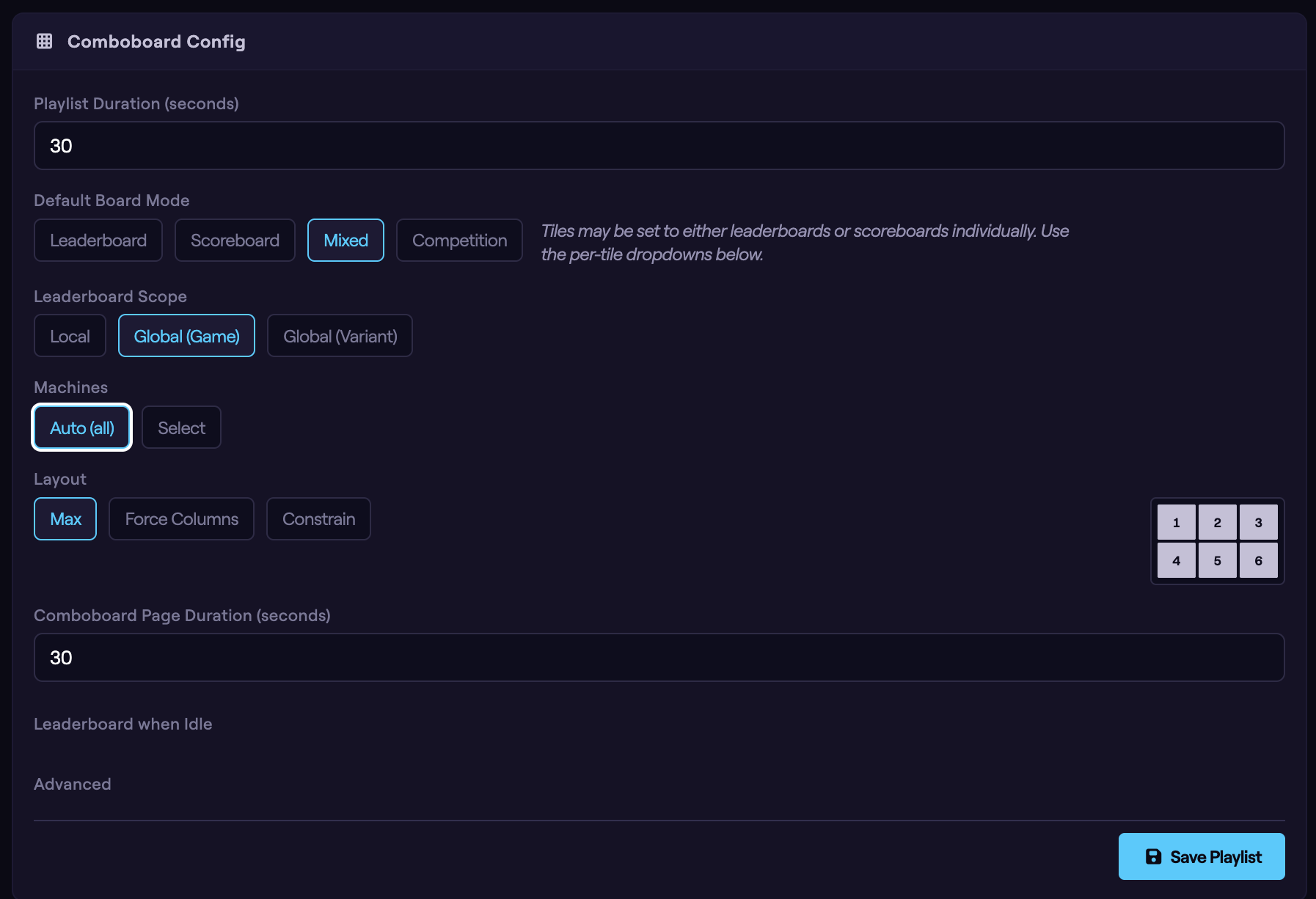
- Leaderboard — every tile shows a leaderboard. You then choose the leaderboard scope (below).
- Scoreboard — every tile shows a live scoreboard, one machine per tile.
- Mixed — tiles can be set to leaderboards or scoreboards individually, using a per-tile dropdown. Choose this when you want, say, three live scoreboards next to two leaderboards on the same screen.
- Competition — tiles show the venue's active tournaments. Competition tiles cannot be combined with other board types.
Leaderboard Scope
When the board mode is Leaderboard or Mixed, a Leaderboard Scope option sets the default scope for leaderboard tiles:
- Local — top scores for each selected machine at your venue.
- Global (Game) — top scores for each selected game title across the platform.
- Global (Variant) — top scores for a specific edition or variant of each selected game.
This is the same set of scopes described in the Leaderboards guide; here it applies to the comboboard's tiles as a whole.
Choosing What Appears on the Tiles
Below the mode options you choose which machines or games fill the tiles. The picker is labeled Machines or Games depending on the mode and scope — global leaderboard scopes pick games, while local and scoreboard tiles pick machines.
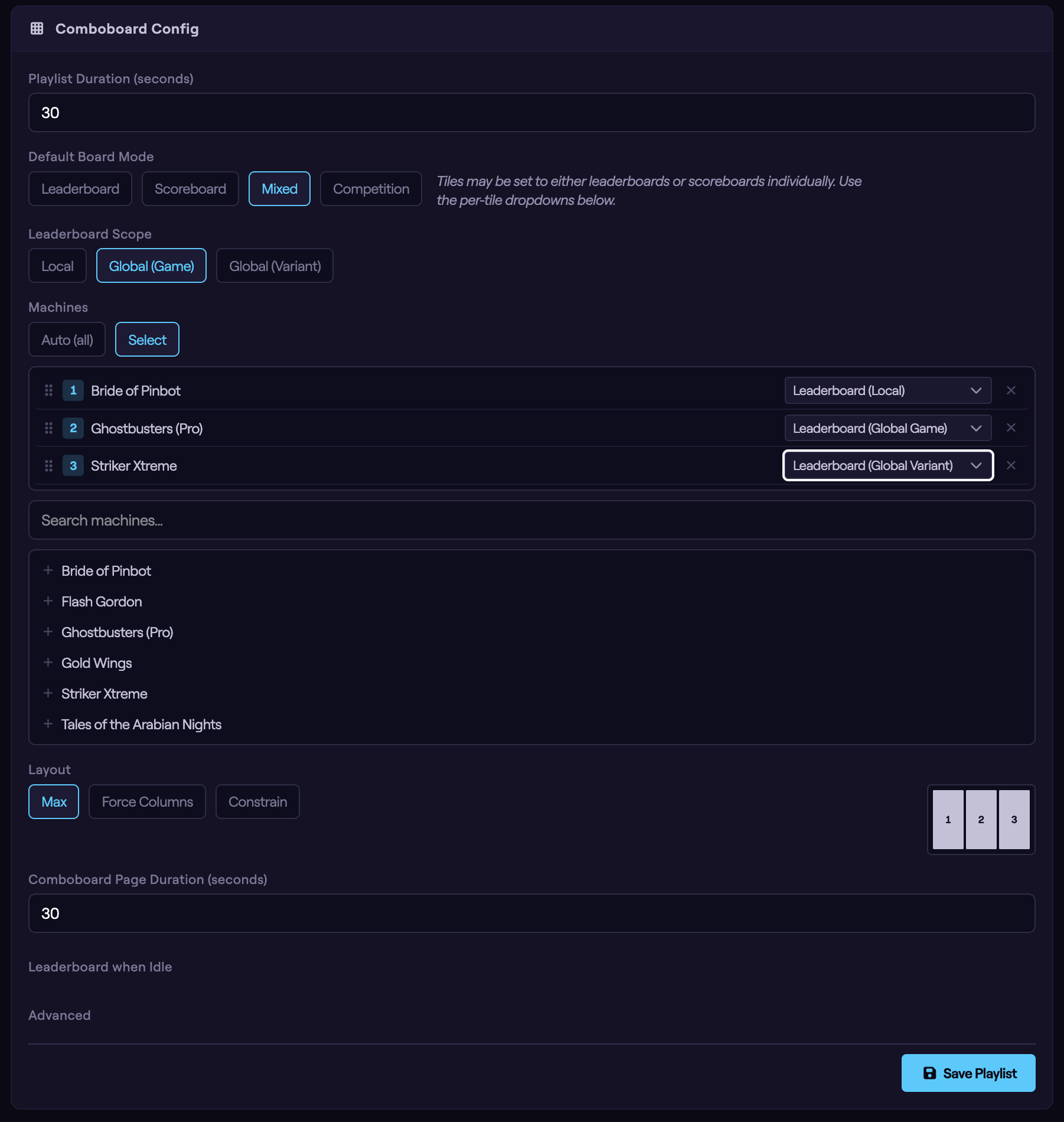
- Auto (all) — the comboboard automatically includes all of your venue's machines (or games). This keeps the board up to date as you add machines, with no manual maintenance.
- Select — choose exactly which machines or games to include.
When you choose Select:
- Search the list and click an entry to add it as a tile.
- Drag the selected tiles by their handles to set the order in which they appear on screen.
- Remove a tile with the ✕ beside it.
Per-Tile Type (Mixed Mode)
In Mixed mode, each selected tile has its own dropdown so you can set that tile's type independently:
- Scoreboard
- Leaderboard (Local)
- Leaderboard (Global Variant)
- Leaderboard (Global Game)
This is what makes a mixed comboboard powerful — you can pair live play and all-time rankings side by side on one screen.
Competition Mode
In Competition mode there is no machine or game picker — the comboboard automatically renders all active tournaments at the venue.
Layout
The Layout option controls how tiles are arranged into the grid, with a live preview beside the buttons.

- Max — the default. The grid automatically picks the best arrangement based on how many tiles you have.
- Force Columns — force a fixed number of columns: 2, 3, or 4.
- Constrain — cap how many tiles appear per page (from 2 up to 8). When there are more tiles than the cap, the comboboard pages through them, and a caption tells you how the pages break down (for example, "3 pages of 4 tiles").
Page Duration
The Comboboard Page Duration sets how long each page of tiles stays on screen before advancing, in seconds. This applies when the comboboard has more tiles than fit on one page (see Constrain layout above).
Leaderboard when Idle
When the board mode is Scoreboard or Mixed — that is, whenever a tile might be a live scoreboard — you can expand Leaderboard when Idle to choose what scoreboard tiles show between games. The options match the Scoreboard guide: Off, Local, Global (Variant), or Both, plus a Page Duration. This setting applies uniformly to all scoreboard tiles.
Advanced Options
When the board mode is Leaderboard or Mixed, expand Advanced for the same leaderboard filters available on a standalone leaderboard, applied to all leaderboard tiles:
- Time Period — All Time, or a preset window (Last 14 Days through Last Year).
- Start Date/Time — count scores from a specific date forward (overrides Time Period).
- VPINs — Include, Exclude, or Only virtual pinball scores.
- Unverified Scores — Include, Exclude, or Only Verified.
- Event Filter — restrict to a venue event, when events are configured.
See the Leaderboards guide for a full description of each filter.
Setting Duration and Saving
Set how long the comboboard stays on screen using the Playlist Duration field at the top of the configuration panel, or by clicking the duration on the playlist item. (For a comboboard that pages through tiles, this is the total time before the playlist moves to the next item, while Page Duration controls each internal page.)
As you make changes, watch the Preview column on the right. When you are satisfied, click Save Playlist to push your changes to the screen.
Next Steps
A comboboard shows multiple boards at once on one page. To rotate through entirely different views over time — leaderboards, scoreboards, images, and more — build them as separate items in the screen's playlist, as described in the ScorbitVision Dashboard guide. The next guide in this series covers Streamboards, for integrating live scores into streaming software.